Защита от трекинга
В этой статье описывается AdGuard для Windows v8.0 — комплексный блокировщик рекламы, который защищает ваше устройство на системном уровне. Это бета-релиз, который ещё находится в стадии разработки. Чтобы начать им пользоваться, скачайте бета-версию AdGuard для Windows.
Многие сайты собирают данные о своих посетителях, включая IP-адреса, информацию о браузере и операционной системе, разрешение экрана и даже страницу, с которой вы пришли. Куки могут использоваться для идентификации вашего браузера, запоминания предпочтений или распознавания вас при повторном посещении сайта. Защита от трекинга предотвращает сбор ваших личных данных такими системами. Подробнее в нашей статье о Защите от трекинга в AdGuard
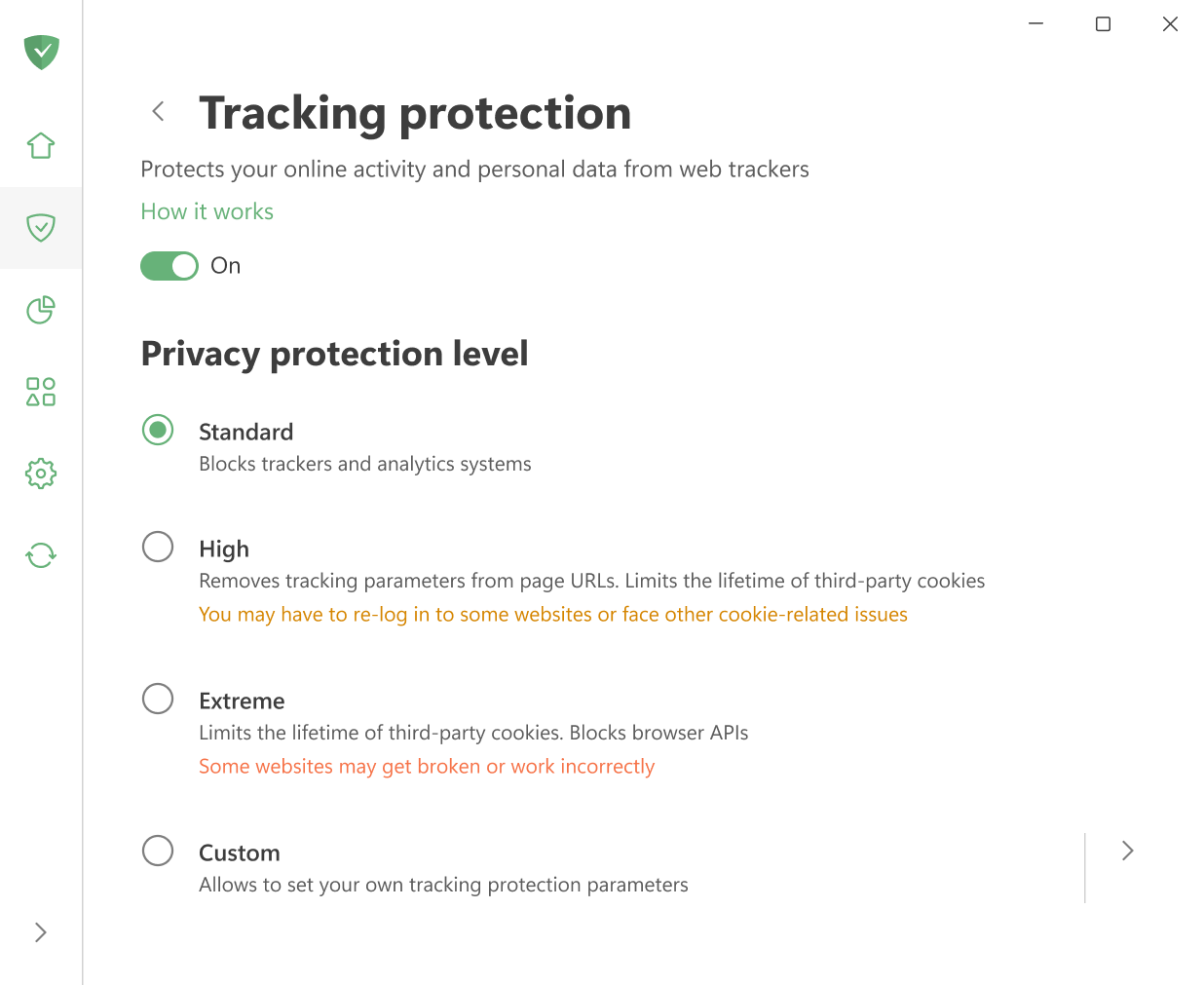
Если вы не хотите тратить время на ручную настройку фильтров, вы можете просто выбрать один из готовых уровней защиты:
- Стандартный: включён по умолчанию и обеспечивает надёжную защиту для повседневного просмотра сайтов.
- Высокий: удаляет параметры отслеживания из URL страниц и блокирует сторонние куки. Придётся время от времени заново входить на некоторые сайты или сталкиваться с другими проблемами, связанными с куки.
- Экстремальный: ограничивает срок действия сторонних куки и блокирует некоторые API браузера. Некоторые сайты могут работать некорректно.
Для максимальной гибкости выберите Пользовательский режим и настройте все параметры вручную. Здесь настройки разделены на пять категорий:
Основные настройки
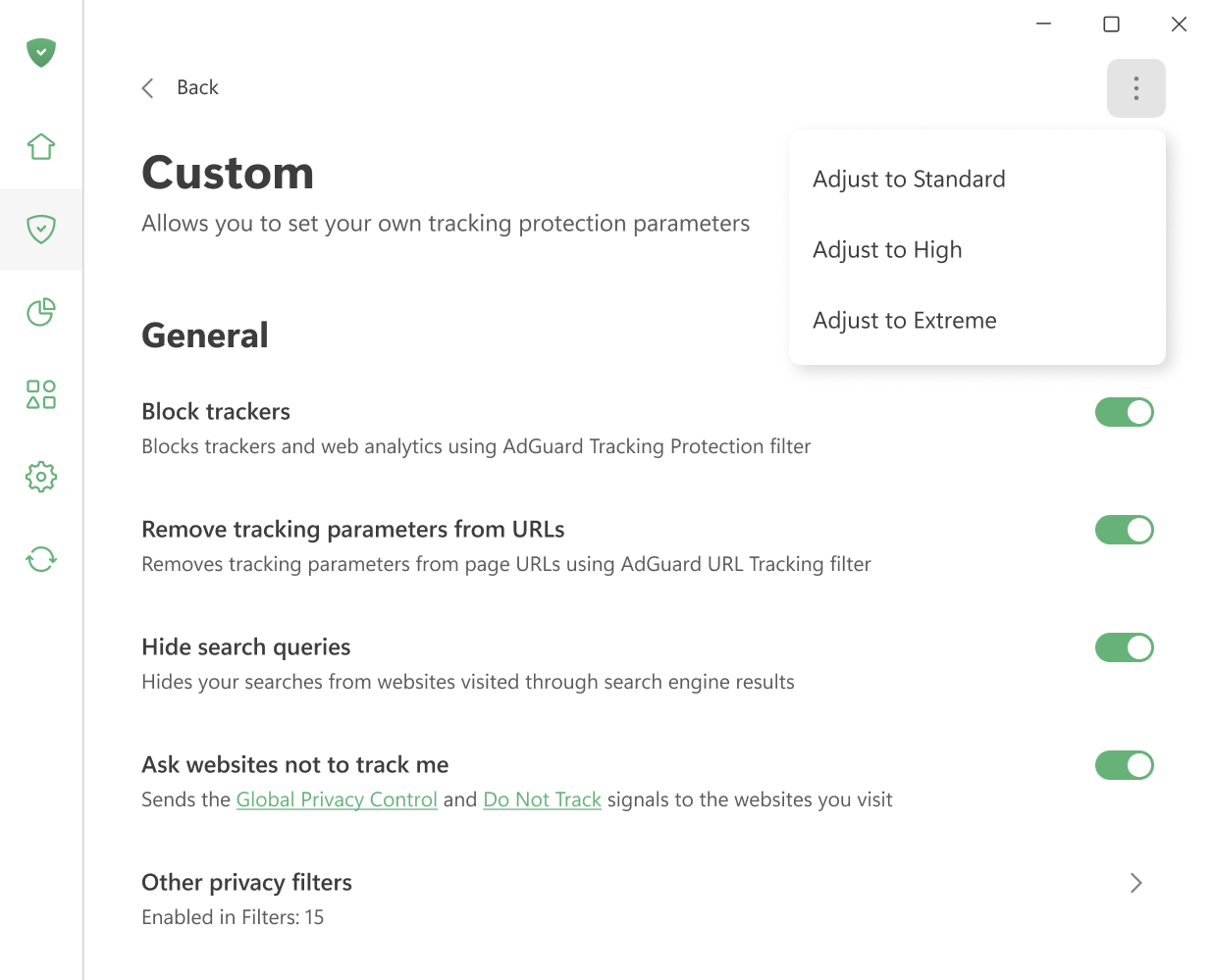
Блокировать трекеры
Блокирует трекеры и веб-аналитику с помощью Фильтра счётчиков и систем аналитики.
Удалять параметры отслеживания из URL-адресов
Удаляет трекинговые параметры, такие как utm_* и fb_ref, из URL-адресов с помощью Фильтра отслеживания по URL.
Скрывать поисковые запросы
Скрывает ваши запросы от сайтов, на которые вы перешли из поисковой системы. При переходах из результатов поиска Google, Yandex или других поисковых систем эта опция скрывает от сайта поисковый запрос, по которому вы нашли его.
Просить сайты не отслеживать меня
Отправляет сигналы Global Privacy Control и Do Not Track сайтам, которые вы посещаете.
Методы отслеживания
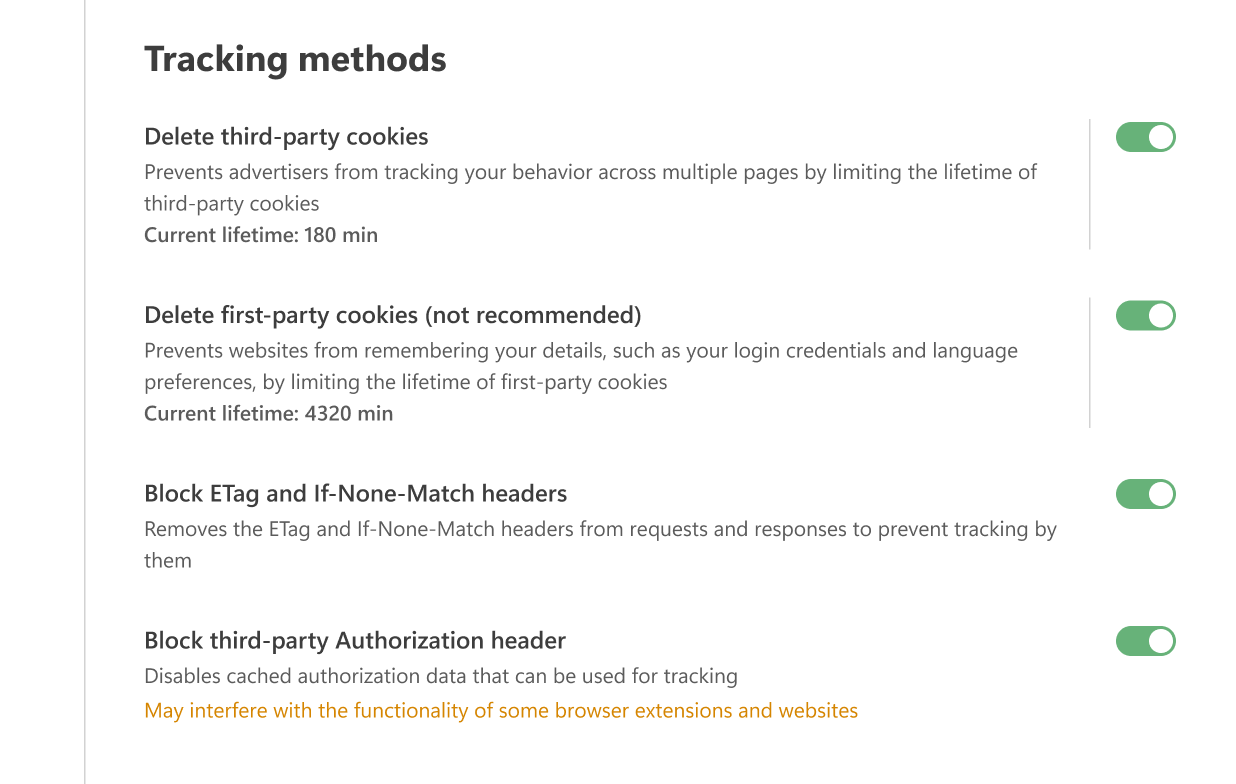
Удалять сторонние файлы куки
Сайты используют файлы куки для хранения ваших предпочтений — например, выбранного языка, вашего местоположения или товаров в корзине. Когда вы возвращаетесь, браузер отправляет эти куки обратно, чтобы сайт мог вас распознать.
Сторонние куки работают так же, но создаются доменами, отличными от того, который вы посещаете. Например, cnn.com может содержать виджет Facebook Like. Он установит файл куки, который позже будет прочитан Facebook. Рекламодатели часто используют такие куки для отслеживания других посещаемых вами сайтов.
С помощью этой функции вы можете задать ограничение по времени (в минутах), по истечении которого все сторонние куки будут удалены. Если установить таймер на 0, такие файлы будут полностью заблокированы.
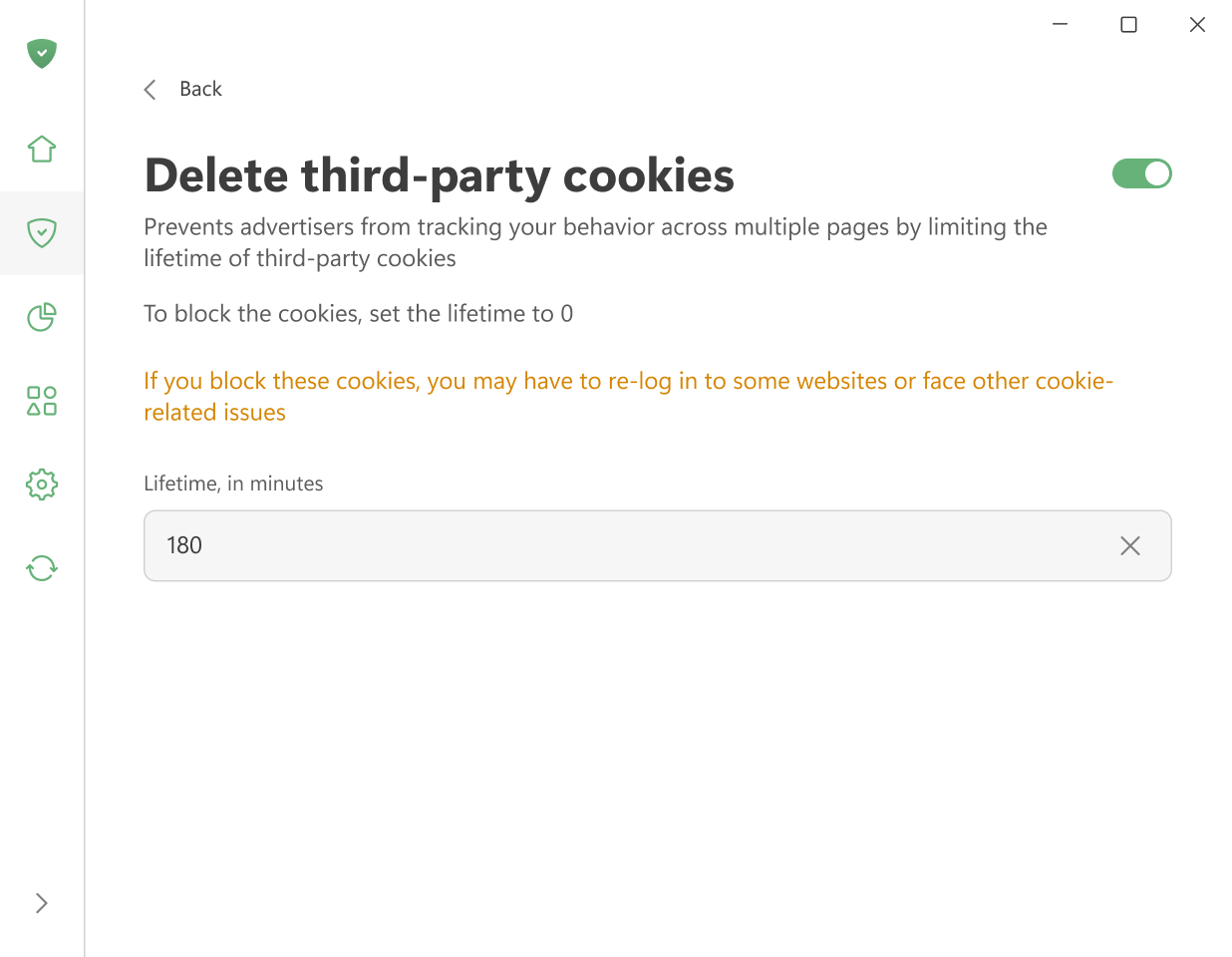
Обратите внимание, что эта настройка удаляет все сторонние куки, включая те, которые используются для входа в систему через социальные сети или другие внешние сервисы. Это означает, что вам, возможно, придётся время от времени входить в систему снова или решать другие проблемы, связанные с куки. Если вы хотите заблокировать только отслеживающие куки, используйте Фильтр счётчиков и систем аналитики.
Удалять куки сайта (не рекомендуется)
Этот параметр удаляет куки, установленные сайтом, на котором вы сейчас находитесь, после выбранного периода времени (в минутах). По истечении таймера все упомянутые выше куки будут удалены. Установите таймер на 0, чтобы заблокировать их полностью.
Мы не рекомендуем включать эту опцию, так как она может серьёзно нарушить работу некоторых сайтов.
Блокировать заголовки ETag и If-None-Match
Удаляет заголовки ETag и If-None-Match из запросов и ответов, чтобы сайты не могли использовать их для отслеживания.
Когда браузер обращается к странице, сервер присваивает ей ETag — уникальный идентификатор, используемый для кеширования содержимого страницы. При последующих посещениях браузер отправляет тот же ETag обратно на сервер. Это позволяет серверу распознать посетителя. Пока кешированные файлы сохраняются, ETag передаётся с каждым запросом. Если на странице также есть встроенные элементы с других серверов, таких как изображения или iframe, эти серверы могут использовать ETag для отслеживания вашей активности без вашего ведома.
Блокировать сторонний заголовок авторизации
Отключает кешированные данные авторизации, которые могут быть использованы для отслеживания. Может нарушать работу некоторых браузерных расширений и сайтов.
Значение заголовка Authorization кешируется браузером и автоматически отправляется с каждым запросом к тому же домену. Поскольку он сопровождает каждый запрос, его можно использовать для идентификации и отслеживания пользователей аналогично куки.
API браузера
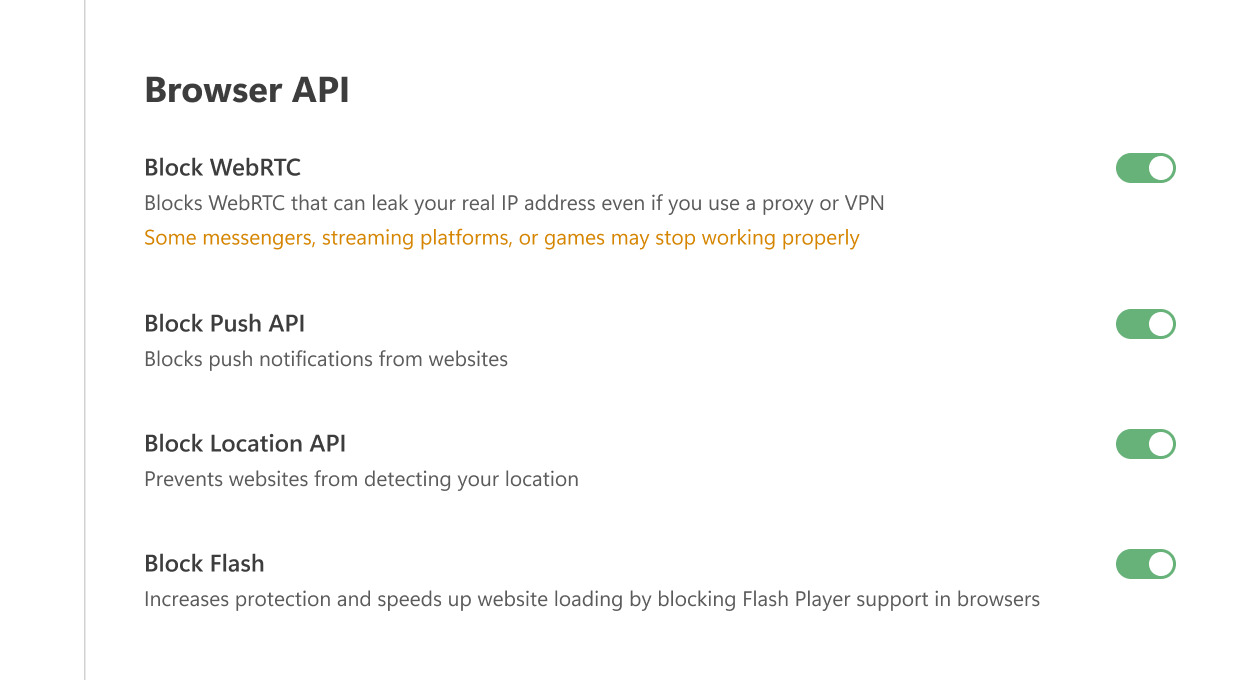
Блокировать WebRTC
Блокирует WebRTC — известную уязвимость, которая может привести к утечке вашего реального IP-адреса, даже если вы используете прокси или VPN.
WebRTC (Web Real-Time Communications) — технология, которая разрешает прямой стриминг данных между браузерами и приложениями. Это может раскрыть ваш настоящий IP-адрес, даже если вы используете прокси или VPN. Включение этой опции может нарушить работу некоторых браузерных приложений, таких как мессенджеры, чаты, кинотеатры, игры.
Блокировать Push API
Push API позволяет серверам отправлять сообщения веб-приложениям вне зависимости от активности вашего браузера. Вот почему вы можете получать уведомления от сайтов, даже если ваш браузер скрыт в трее или не запущен. Включение этой опции полностью блокирует Push API.
Блокировать Location API
Когда эта опция включена, браузер не отправляет GPS-данные на веб-сайты. Это предотвращает определение вашей локации, изменение результатов поиска или адаптацию контента на основе вашего местоположения.
Блокировать Flash
Плагин Flash Player устарел и сильно уязвим для вирусов и эксплойтов. Его работа также может замедлять загрузку сайтов. Включение этой опции предотвращает обнаружение браузерами Flash-компонентов (таких как плагины или объекты ActiveXObject), что фактически отключает поддержку Flash.
Windows-трекинг
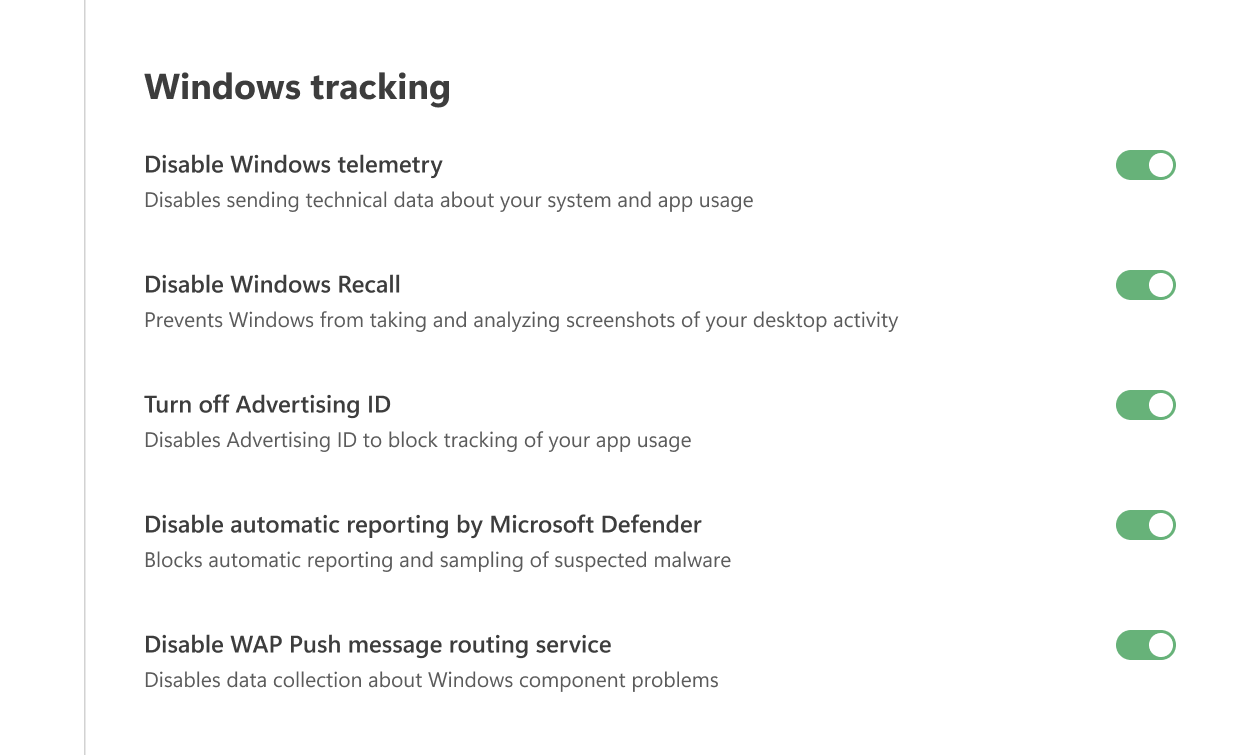
Отключить телеметрию Windows
Отключает отправку данных о вашей системе и использовании приложений.
Выключить рекламные идентификаторы
Отключает рекламный идентификатор, чтобы приложения не могли отслеживать, как вы ими пользуетесь.
Отключить автоматические отчёты Microsoft Defender
Запрещает Defender отправлять автоматические отчёты и образцы подозрительных файлов.
Отключить WAP Push
Отключает сбор данных о проблемах компонентов Windows
Разное
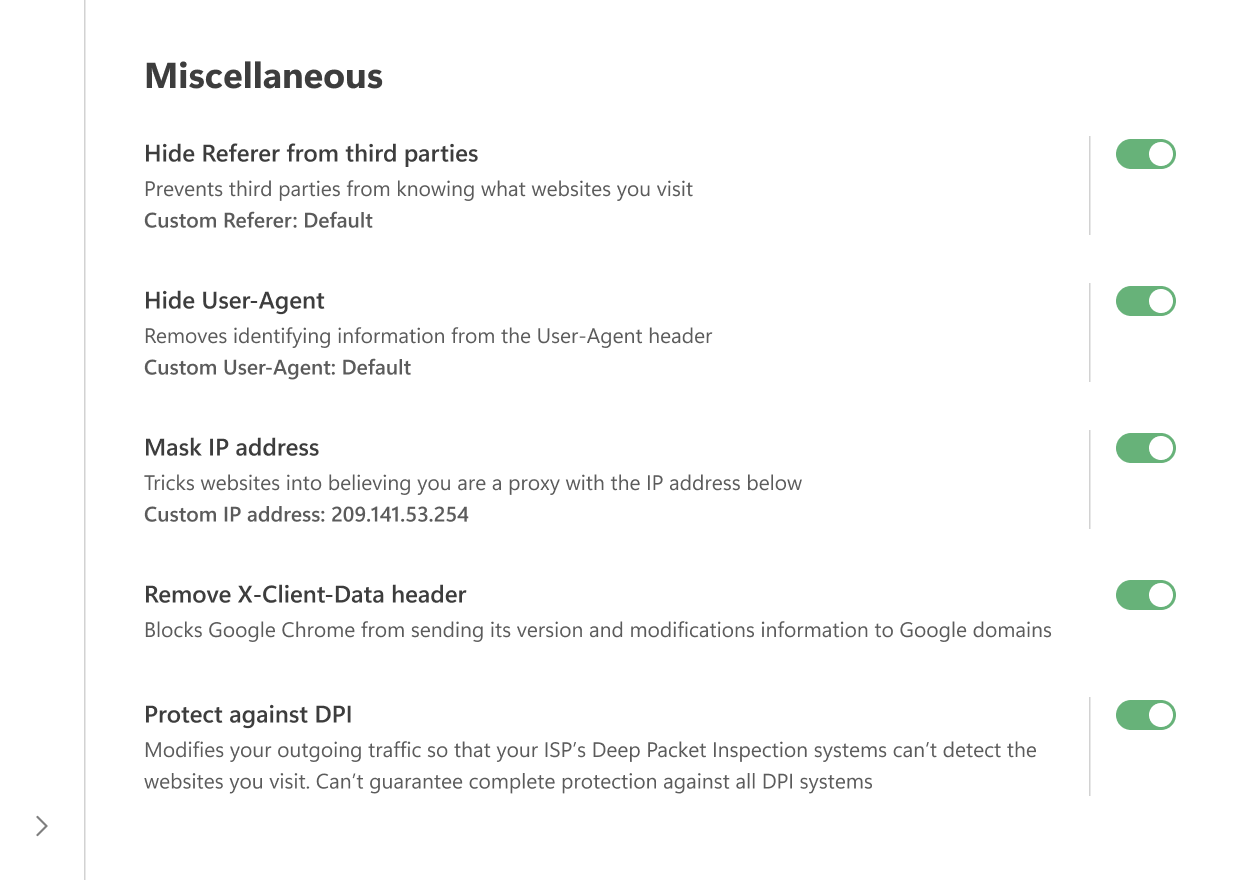
Скрывать Referer от сторонних ресурсов
Referer — это HTTP-заголовок, включаемый в запросы от браузера к серверу. Он содержит URL-адрес источника запроса. Когда вы переходите с одной страницы на другую, Referer сохраняет URL начальной страницы. Часто на сервере, где размещена веб-страница, устанавливается программное обеспечение, которое анализирует Referer и извлекает из него различную информацию.
Включение опции Скрывать Referer от сторонних ресурсов изменяет или удаляет заголовок, что предотвращает доступ сторонних сайтов к этой информации.
Вы также можете ввести своё значение в поле Пользовательский Referer. Оставьте поле пустым, чтобы использовать Referer по умолчанию.
Обратите внимание, что для фильтрации трафика приложения AdGuard перехватывают запросы от браузера к серверу. Запросы к рекламным, отслеживающим и фишинговым серверам могут быть изменены перед отправкой на сервер или полностью заблокированы.
То же самое относится и к опции Скрыть Referer от сторонних ресурсов: чтобы фильтровать трафик, AdGuard перехватывает HTTP(S)-запросы и может изменять или блокировать их до того, как они достигнут сервера. Изменения происходят только после того, как запрос покидает ваш браузер. По этой причине, если вы проверите заголовки в браузере (например, с помощью Chrome Developer Tools), вы всё равно увидите оригинальный Referer. Чтобы убедиться в том, что он был изменён, можно воспользоваться внешними инструментами, например Fiddler.
Скрывать User-Agent
Когда вы заходите на сайт, ваш браузер в составе HTTP-запроса отправляет заголовок User-Agent. Он выглядит как текстовая строка, начинающаяся с «User-Agent». В этой строке обычно содержатся такие детали, как название и версия браузера, операционная система и языковые настройки.
Когда эта опция включена, AdGuard удаляет идентифицирующую информацию из User-Agent, чтобы рекламодатели и трекеры не могли использовать её для создания вашего профиля. При желании вы можете ввести собственное значение в поле Пользовательский User-Agent. Чтобы сохранить значение по умолчанию, просто оставьте поле пустым.
Скрывать IP-адрес
AdGuard не может полностью скрыть ваш реальный IP-адрес, но может заменить его другим, чтобы сайты воспринимали ваше соединение как проходящее через прокси. В некоторых случаях это помогает скрыть ваш настоящий IP.
В соответствующее поле можно ввести любой IP-адрес, который вы хотите использовать. Оставьте поле пустым, чтобы использовать IP-адрес по умолчанию.
Удалять заголовок X-Client-Data
Запрещает Google Chrome отправлять информацию о своей версии и изменениях в запросах на домены Google, включая такие сервисы, как DoubleClick и Google Analytics.
Защита от DPI
DPI (Deep Packet Inspection) — это система глубокого анализа и фильтрации трафика по содержимому пакетов, а также накопления статистических данных. Используя её, интернет-провайдеры могут контролировать проходящий трафик и ограничивать любому своему клиенту доступ к контенту.
Технология глубокого анализа пакетов (Deep Packet Inspection, DPI) используется некоторыми интернет-провайдерами для анализа и фильтрации трафика на основе содержимого пакетов. Это позволяет им отслеживать соединения, ограничивать доступ к определённым ресурсам и собирать статистику о пользователях.
Когда эта опция включена, AdGuard изменяет данные исходящих пакетов таким образом, чтобы они больше не соответствовали критериям блокировки DPI. Это может помочь вам обойти ограничения и получить доступ к нужному контенту. Однако не все системы DPI пока можно обойти — мы работаем над улучшениями.
Функция Защита от DPI уже реализована в AdGuard для Windows, AdGuard для Mac и AdGuard для Android.
Если эта функция включена в AdGuard для Windows, она может мешать работе антивируса ESET. В этом случае ESET не сможет фильтровать трафик, оставляя доступными некоторые вредоносные или заблокированные сайты.