Установка
В этой статье рассказывается об AdGuard для Windows — многофункциональном блокировщике рекламы, который защищает ваше устройство на системном уровне. Скачайте приложение AdGuard, чтобы увидеть, как оно работает
Системные требования
Operating system: Microsoft Windows 11, 10, 8.1, 8.
RAM: at least 1 GB.
Free disk space: 150 Mbytes.
Browsers: Microsoft Edge, Microsoft Internet Explorer (all versions), Opera, Google Chrome, Yandex.Browser, Mozilla Firefox, and many other browsers.
Установка AdGuard
Чтобы установить AdGuard на ПК или планшет с Windows, выполните следующие действия:
-
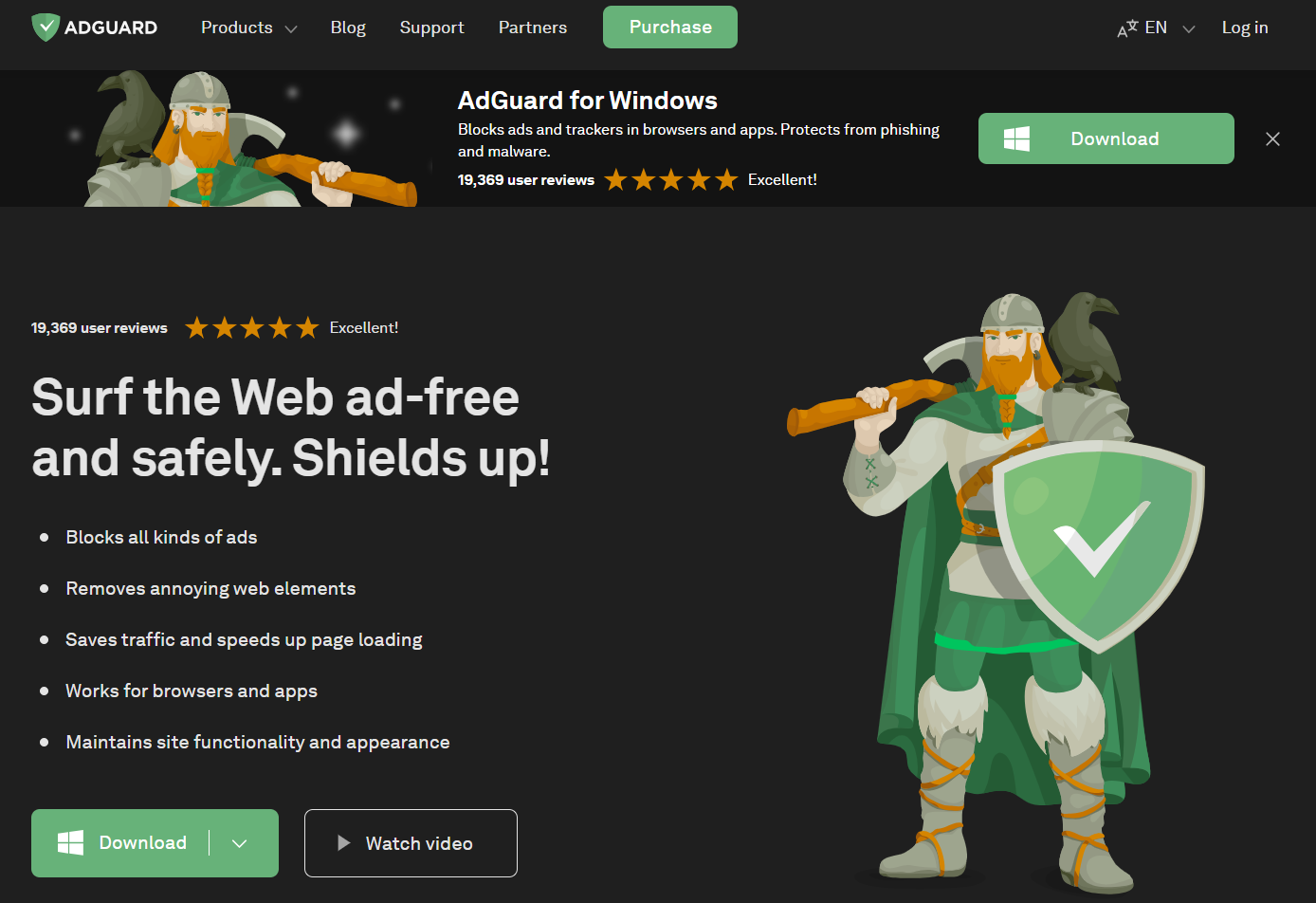
Go to the AdGuard website and click Download. You can also get the installation program from the download page — the download will start automatically.
-
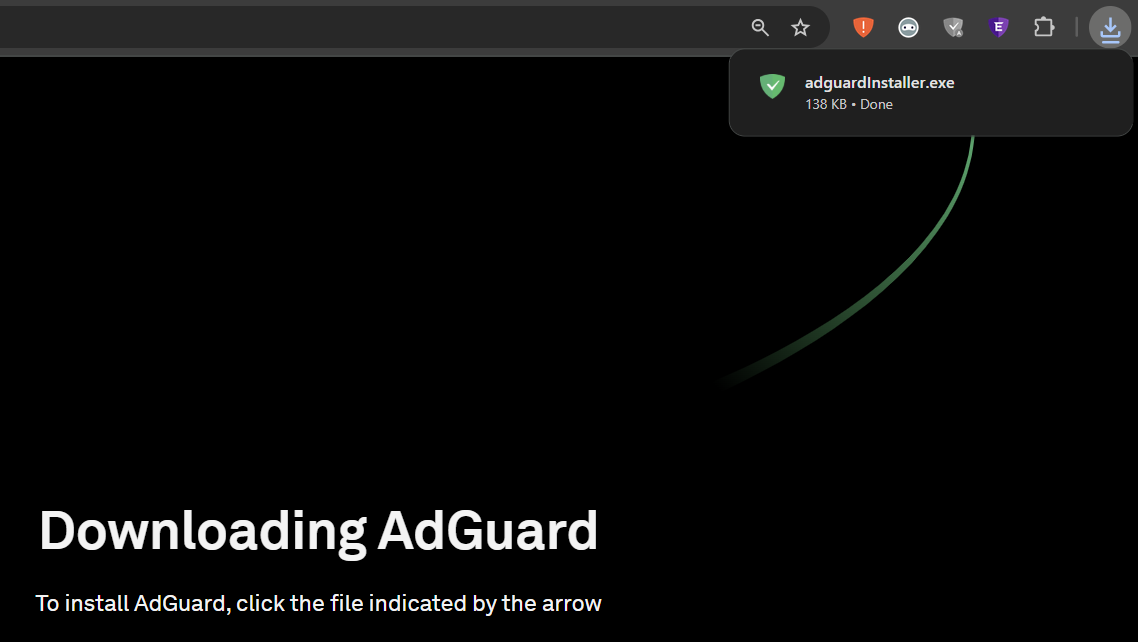
Once the download is complete, open the file adguardInstaller.exe.
-
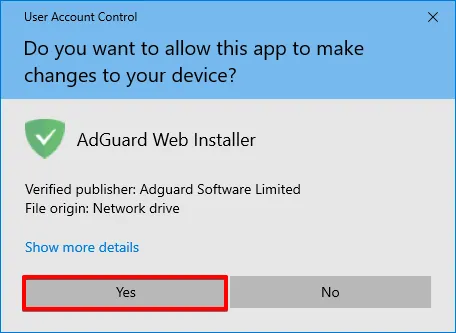
Вы увидите окно Контроля учётных записей, запрашивающее разрешение вносить изменения в ваш компьютер. Click Yes.
-
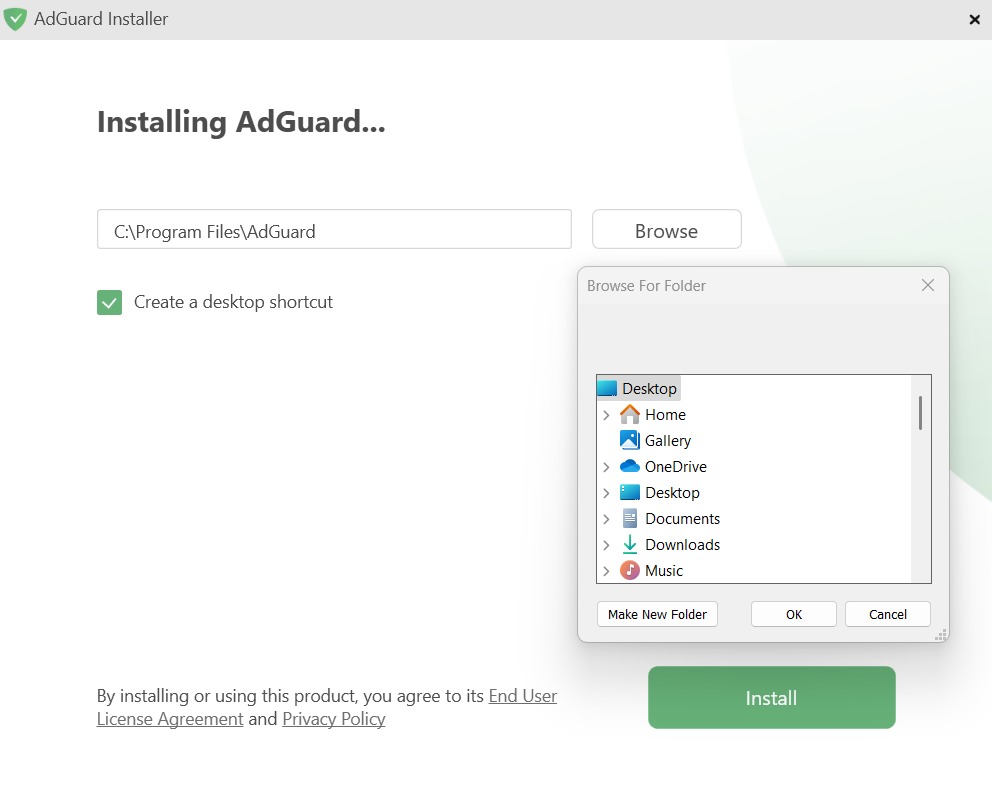
Выберите папку на компьютере, в которую вы хотите установить AdGuard.
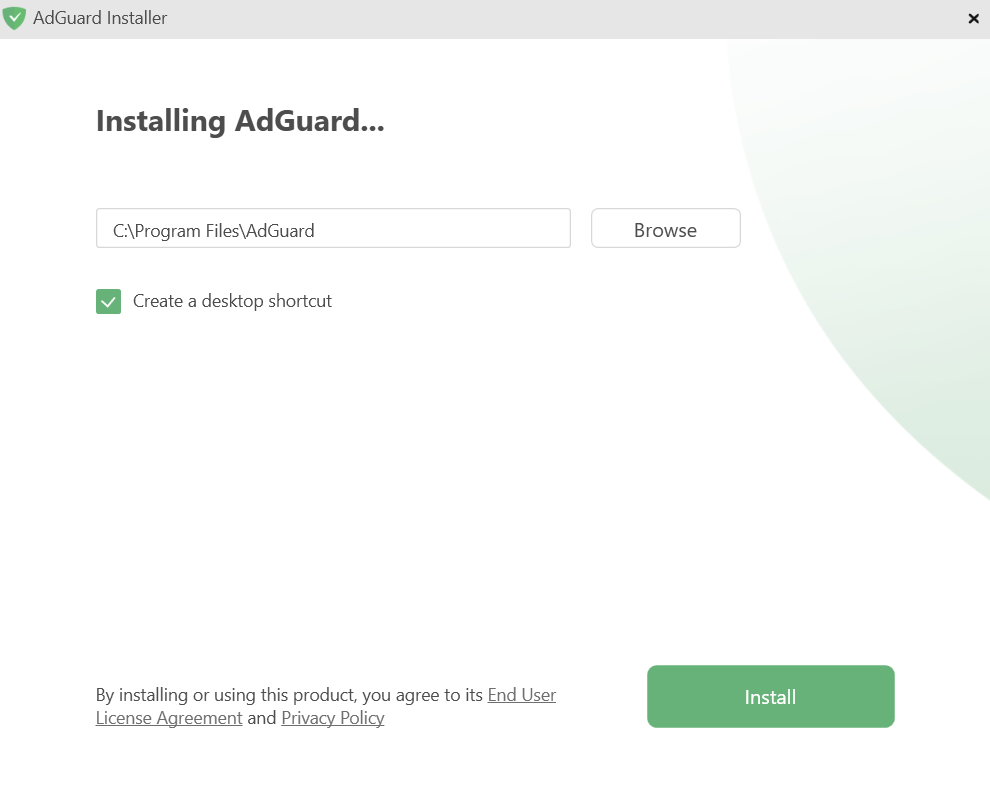
If you want to select a different location, click Browse, choose the folder, and click OK. You can also create a new folder by clicking Make New Folder and naming it. If you’d like a desktop shortcut, check the box Create a desktop shortcut. Then click Install to start the installation.
-
Wait for the installation to complete and click Finish.
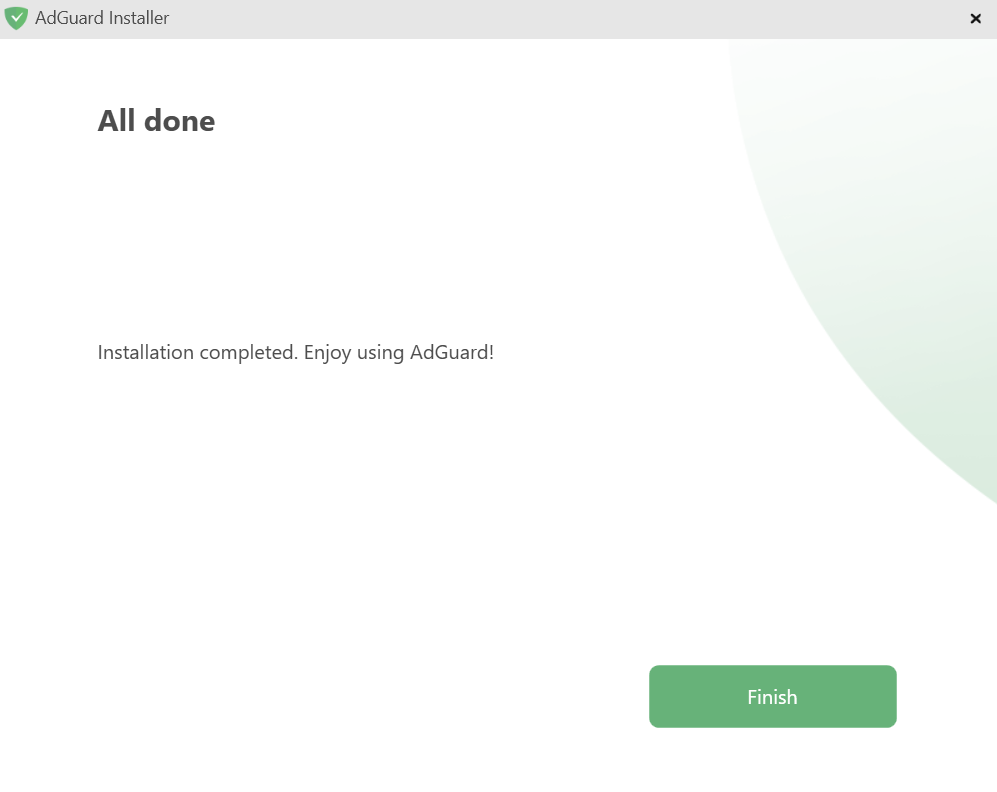
Поздравляем! AdGuard has been successfully installed. Вам будет предложено настроить защиту в соответствии с вашими предпочтениями.
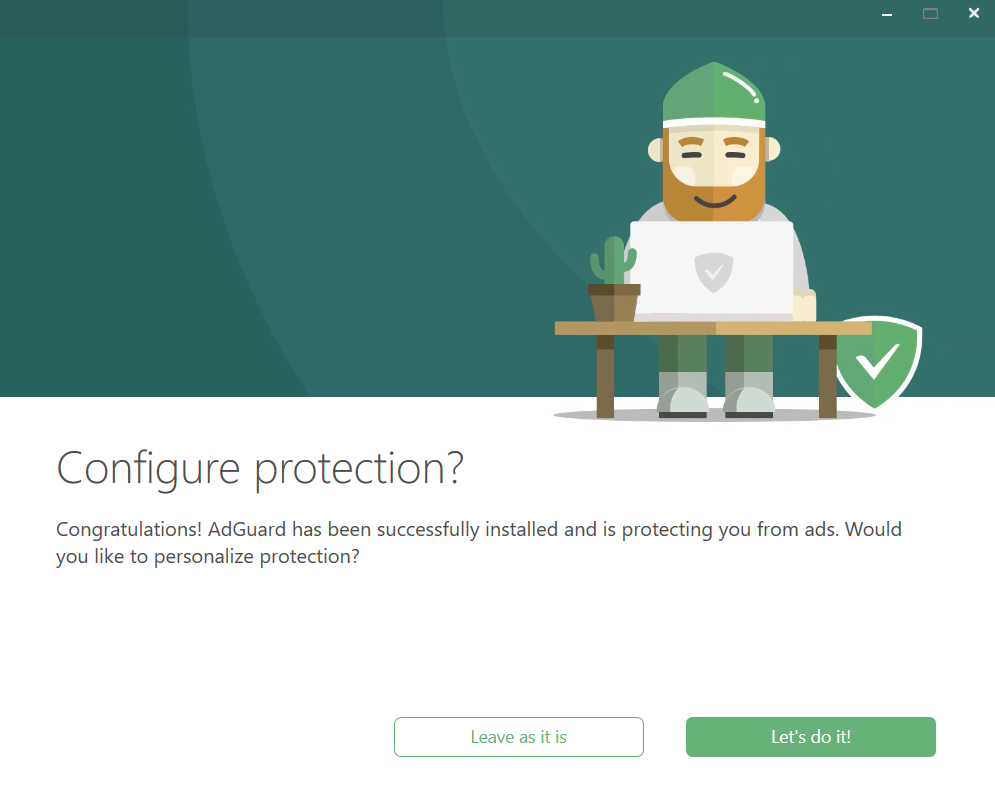
После этого откроется главное окно приложения, где вы сможете настроить параметры.
How to uninstall AdGuard for Windows
Обычный способ
If you need to uninstall or reinstall AdGuard, do the following:
-
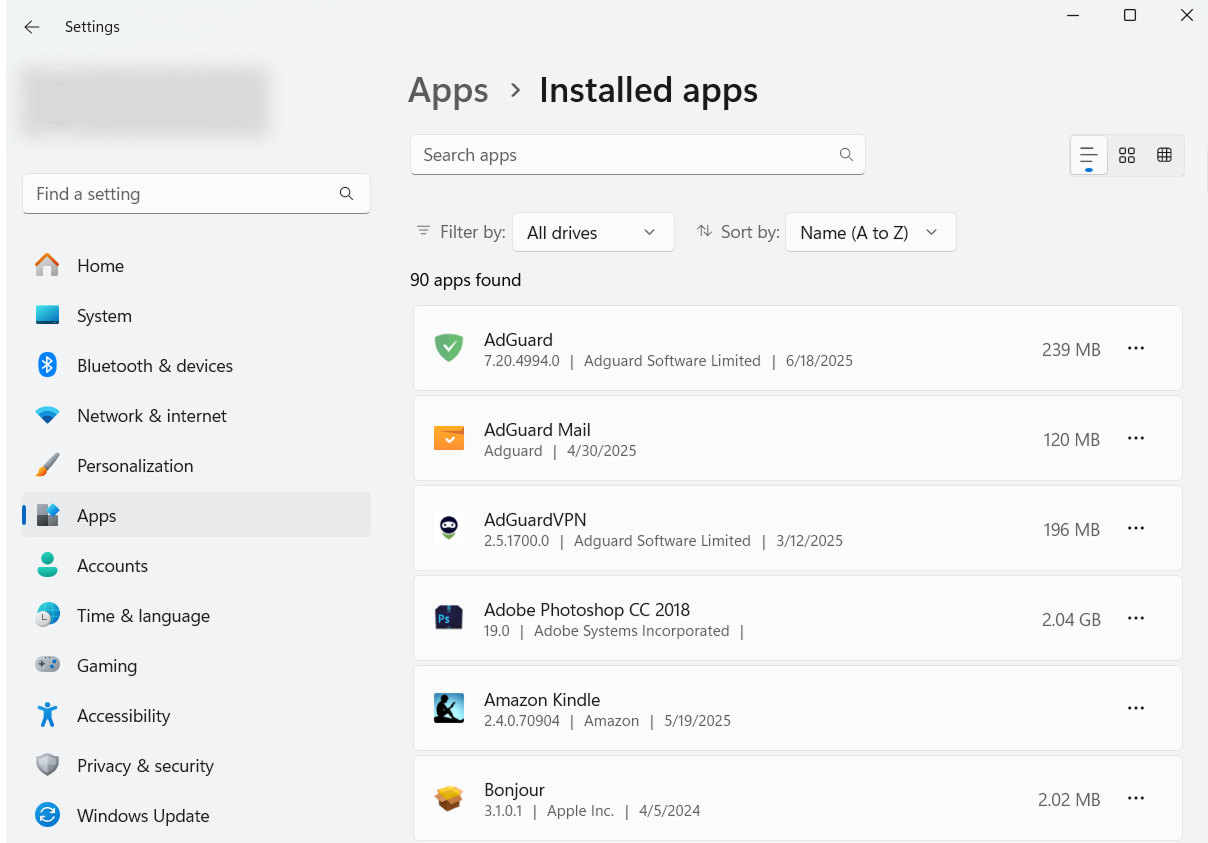
For Microsoft Windows 10 & 11: Open the Start Menu by clicking Start, then select Settings. In the window that opens, click Apps → Installed apps. Select AdGuard from the list of your installed apps, click the three-dot menu, and select Uninstall.
-
For Microsoft Windows 8: Right-click the empty space in the lower left corner of the task bar and select Control Panel. Click Uninstall a program in the Programs section, then select AdGuard from the list of installed apps and press the Uninstall button located right above the list. Confirm the action by clicking Uninstall AdGuard in the window that opens.
-
For Microsoft Windows 8.1: Right-click the Start button and select Control Panel. Click Uninstall a program in the Programs section, then select AdGuard from the list of installed apps and press the Uninstall button located right above the list. Confirm the action by clicking Uninstall AdGuard in the window that opens.
-
For Microsoft Windows 7: Open Start Menu. In the search box, type Control Panel. Click Uninstall a program in the Programs section, then select AdGuard from the list of installed apps and press the Uninstall button located right above the list. Confirm the action by clicking Uninstall AdGuard in the window that opens.
Advanced method
Если по какой-либо причине обычное удаление не работает, вы можете попробовать продвинутый способ. First of all, you need to download the uninstaller tool created by our developers. Extract the archive to any folder on your PC and run the Adguard.UninstallUtility.exe file, and allow the app to make changes to your device. Затем следуйте инструкции ниже:
-
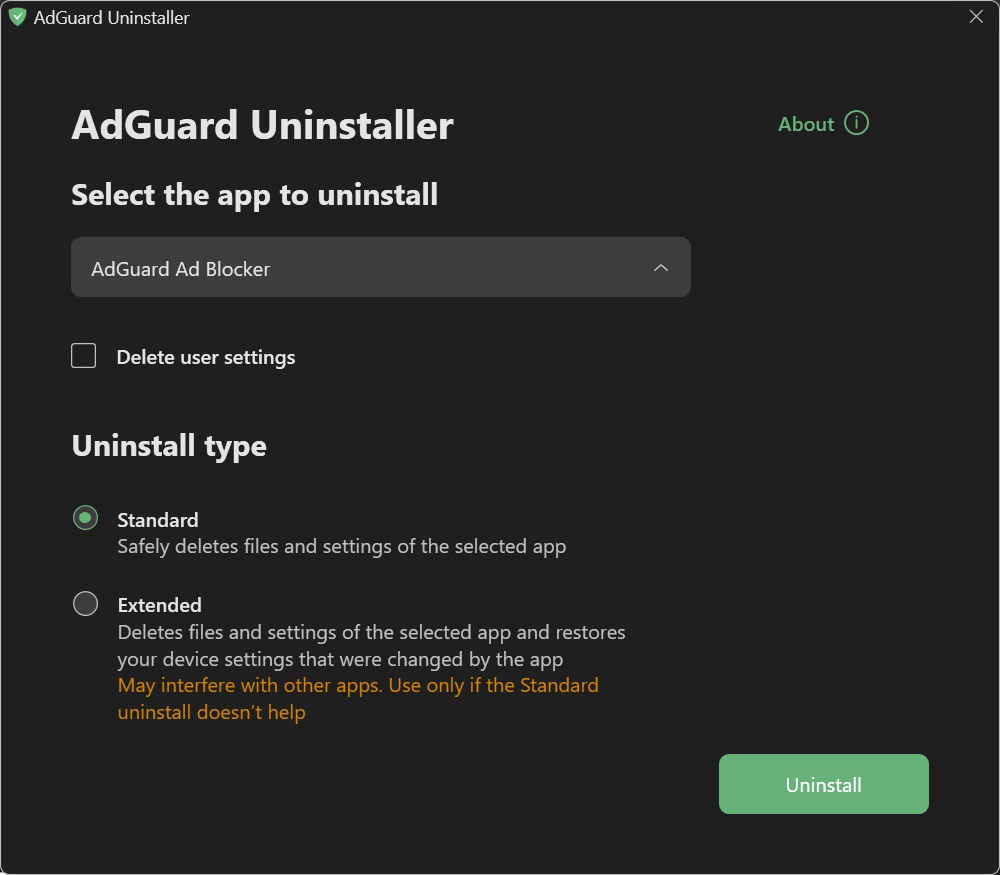
Select AdGuard Ad Blocker and Standard uninstall type, then click Uninstall.
-
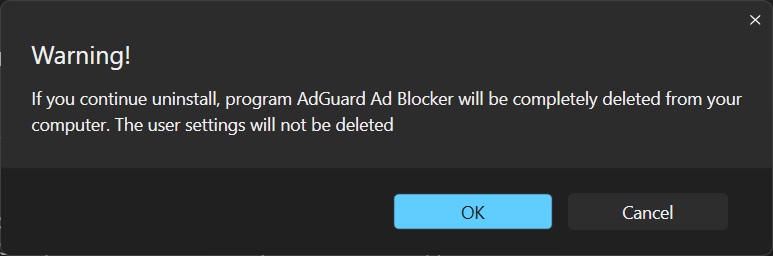
Click OK once the warning window pops up:
-
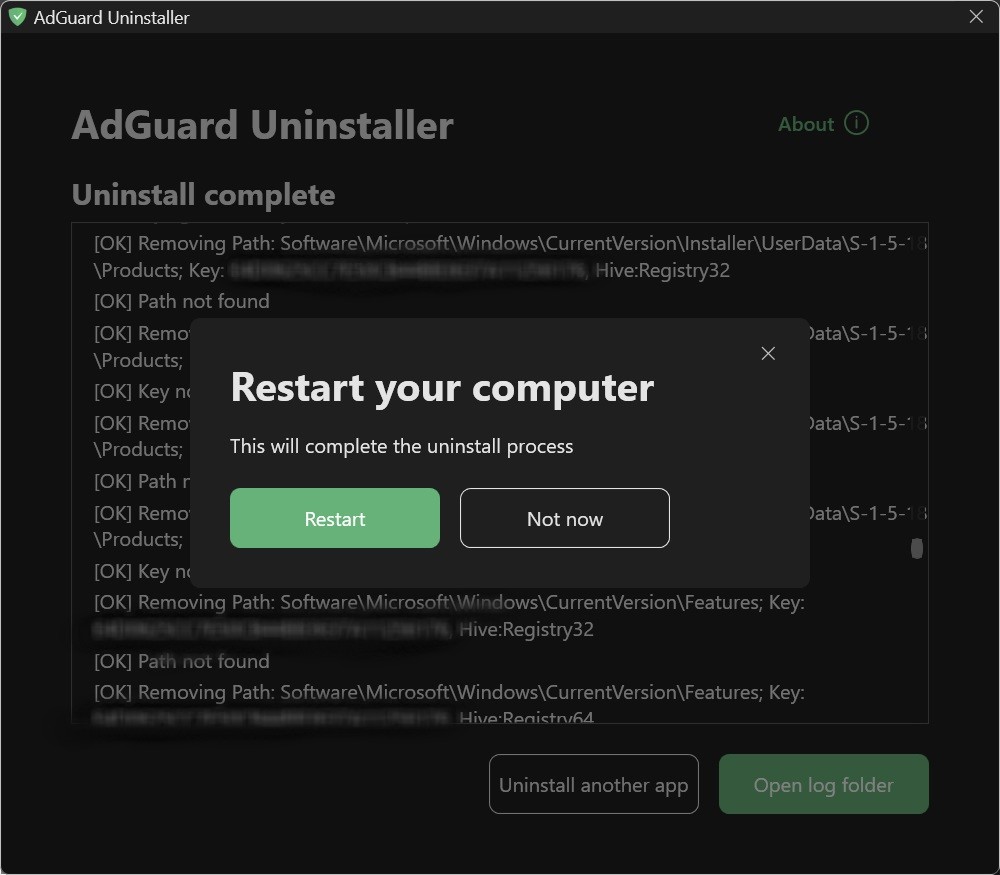
Wait until uninstall is finished — there will be a phrase Uninstall complete and a prompt to restart your computer:
Следующие шаги выполняйте только в том случае, если первых двух шагов по каким-то причинам оказалось недостаточно. Мы настоятельно рекомендуем связаться с нашей командой поддержки, прежде чем использовать шаги 3–4 расширенной инструкции по удалению.
-
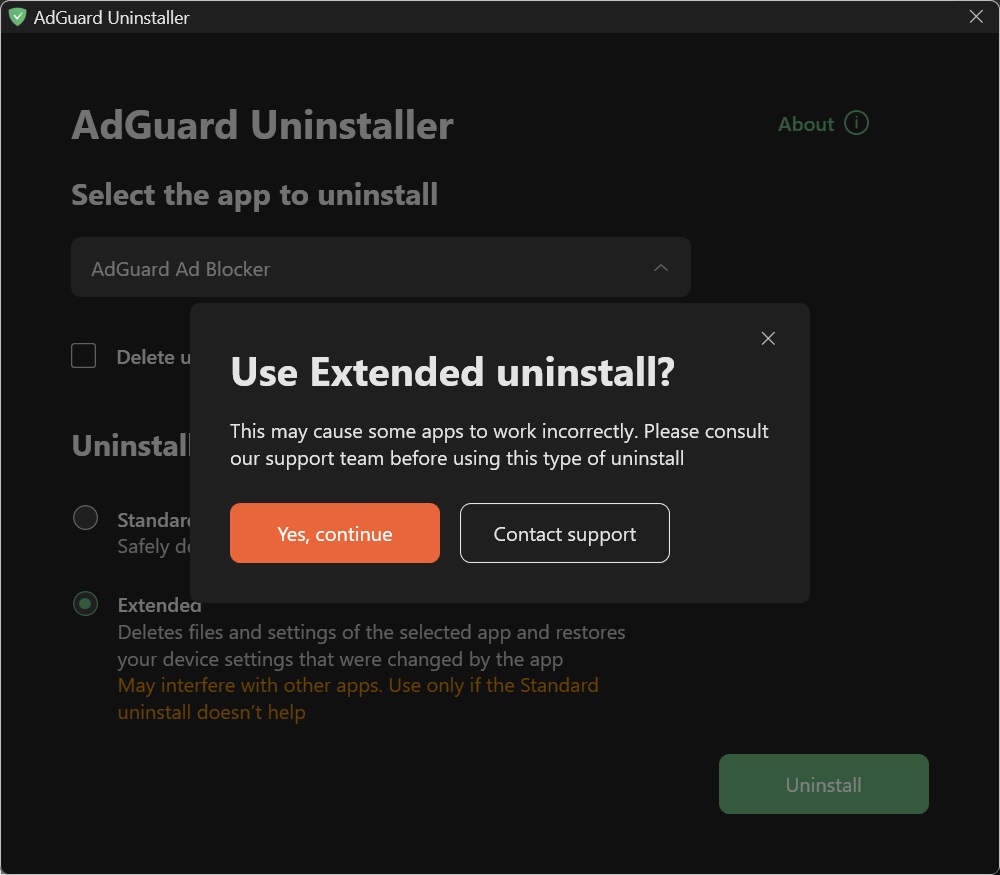
Select AdGuard Ad Blocker and Extended uninstall type, then click Uninstall. Click Yes, continue in the window prompt.
-
Click OK once the warning window pops up:
-
Wait until uninstall is finished — there will be a phrase Uninstall complete and a prompt to restart your computer:
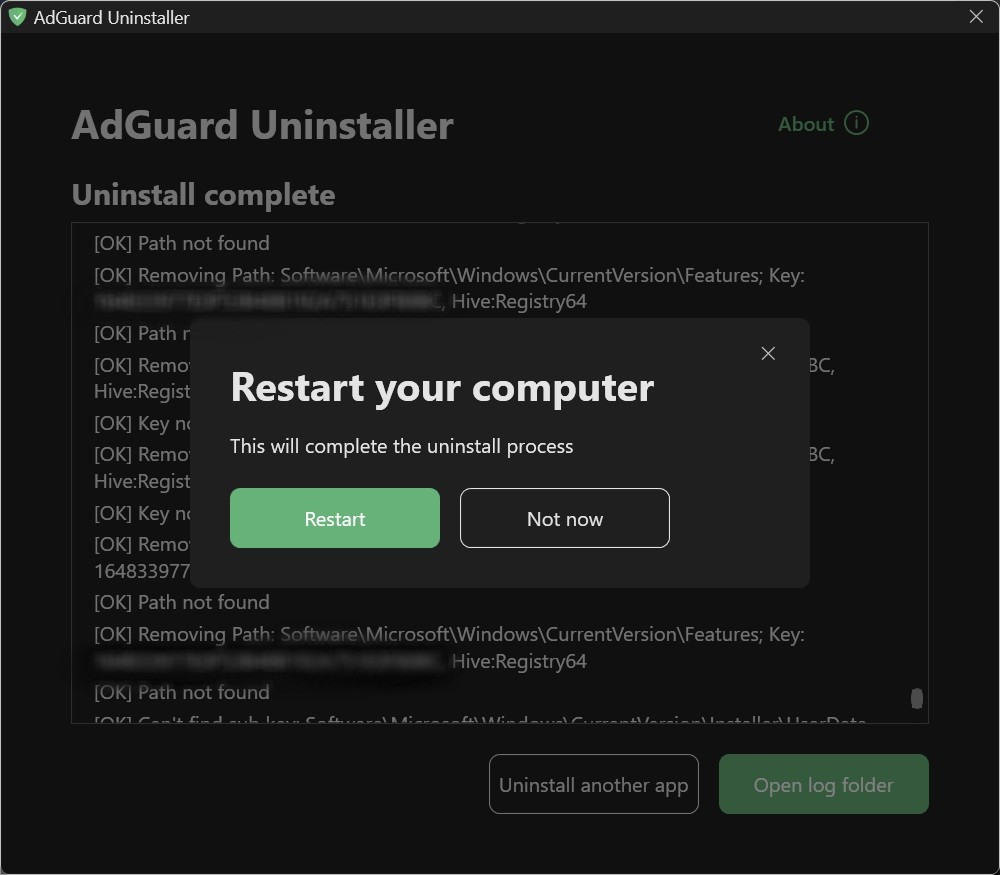
AdGuard успешно удалён!
Running the uninstaller in console mode
Вы также можете использовать командную строку, чтобы запустить программу удаления AdGuard для Windows. Чтобы это сделать, следуйте инструкции ниже:
-
Open Command Prompt by typing cmd from the Start menu.
-
Use
/consoleto run the uninstaller in console mode, without the interactive UI. All the command-line parameters below will be ignored if the/consolemode is not activated. -
Use
/adblockerto uninstall AdGuard for Windows. Это должно выглядеть так:Adguard.UninstallUtility.exe /console /adblocker -
You can also use
/advancedto force the uninstaller to run in Advanced mode and/settingsto force the uninstaller to remove user settings along with the application.
The use of the parameters /console and /adblocker is necessary for a successful uninstall. The parameters /advanced and /settings are optional.