証明書関連の問題
この記事では、システムレベルでお使いのデバイスを保護する多機能広告ブロッカー、「AdGuard for Windows」について書いています。実際どのように機能するのかを確認するには、 AdGuard アプリをダウンロードしてください。
HTTPSトラフィックをフィルタリングし、広告やトラッカーを効率的にブロックするために、AdGuardは特別でユニークなルート証明書を生成し、システムストレージにその証明書をインストールします。 You can learn more about why a certificate is required by reading this article.
AdGuard証明書がインストールプロセス中にシステム証明書ストレージに追加されると、ブラウザは通常、その証明書を信頼します。しかし、場合によってはこれだけでは不十分で、警告やエラーに出くわすこともあります。この現象は、Mozilla Firefox、PaleMoon、WaterfoxなどのFirefoxベースブラウザや、Yandex.Browserでよく起こります。
Here are some common issues:
- Potential Security Risk error in Firefox-based browsers
- Yandex.Browser certificate warning
- Non-official add-ons don’t update in Firefox-based browsers
Potential Security Risk error in Firefox-based browsers
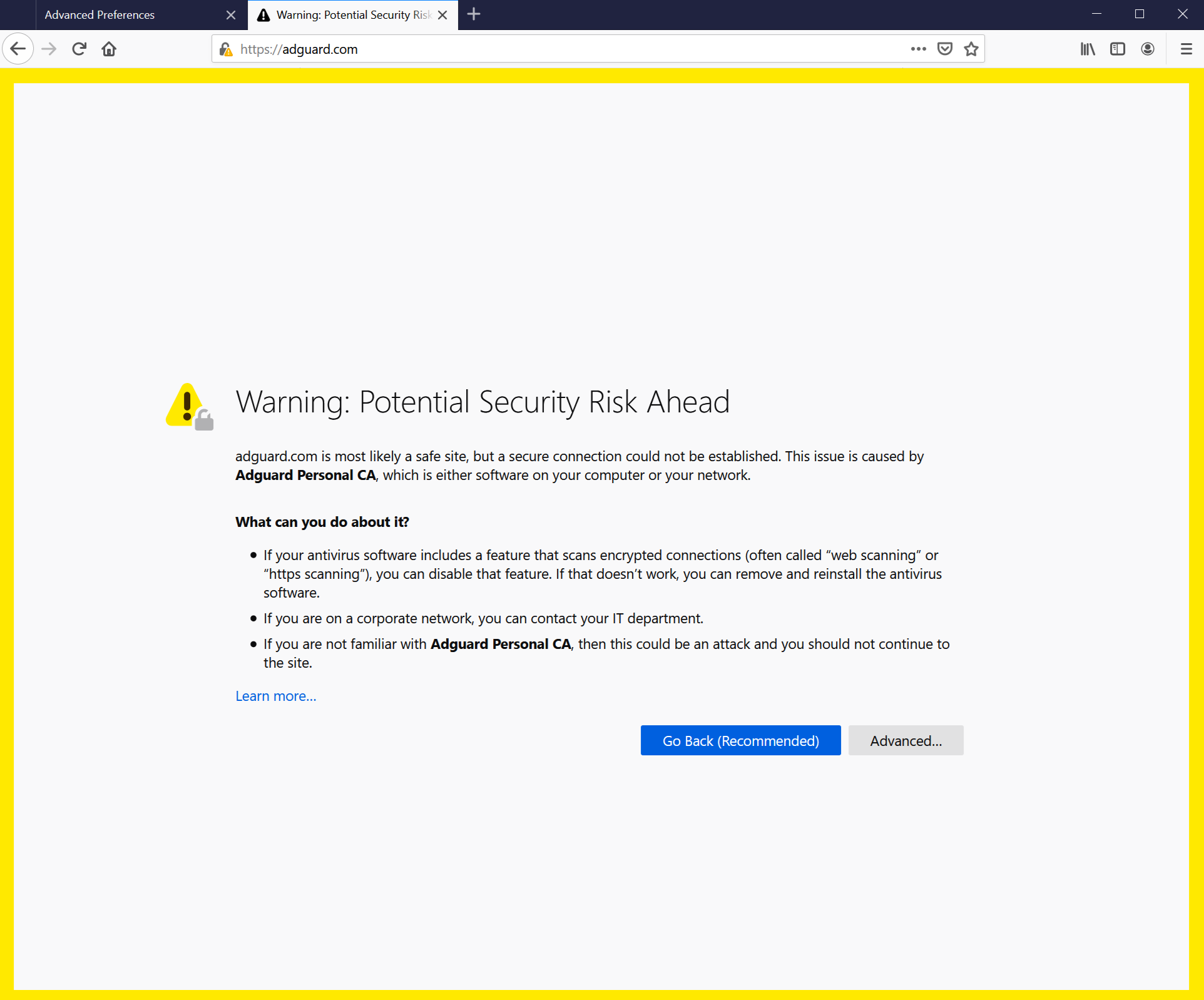
旧バージョンのFireFoxや、それをベースとしたブラウザは、システムストレージの証明書を信用せず、ローカルストレージの証明書のみを信用します。バージョン 68 以降、FireFox はシステム証明書を信頼しますが、それでも「接続が信頼されていません」というエラーが発生する可能性があります。 If something like this happens, first try to click the Reinstall Certificate button — you will find it in the Network tab.
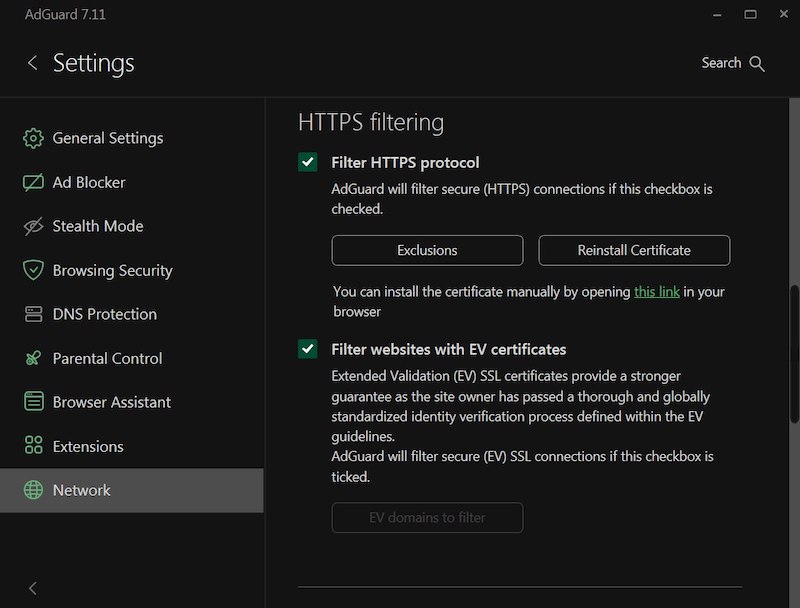
それでも解決しない場合は、AdGuard証明書をFireFoxのストレージに手動で追加する手順に従ってください。
※以下の手順はFirefoxブラウザ用です。他のFirefoxベースのブラウザでは、ボタンやメニューの名前が多少異なる場合があります。
-
AdGuard を起動します。
-
Go to https://local.adguard.org/cert and click the Download button. The browser should start downloading cert.cer file.
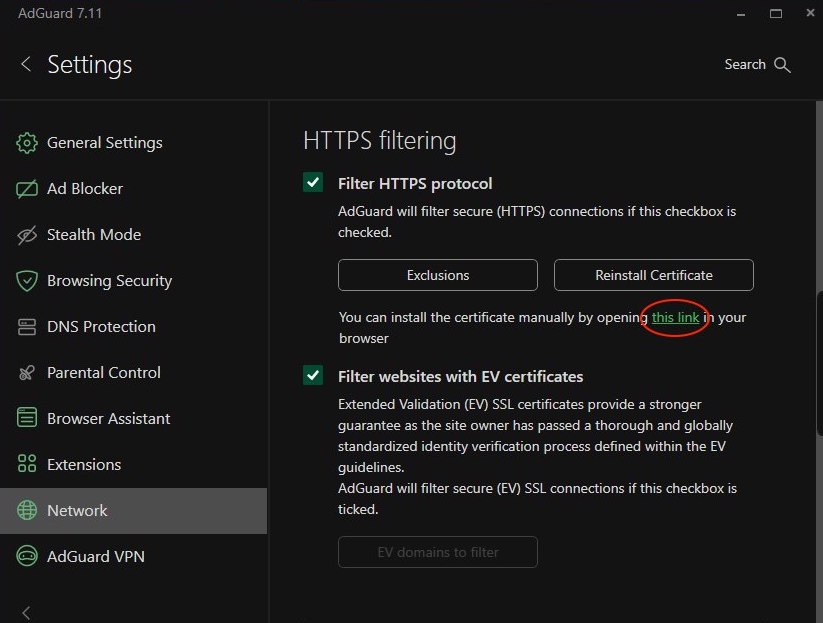
noteYou can also open the download page by clicking the link via the AdGuard app at Settings → Network → HTTPS filtering.
-
Open your browser and then open Settings.
-
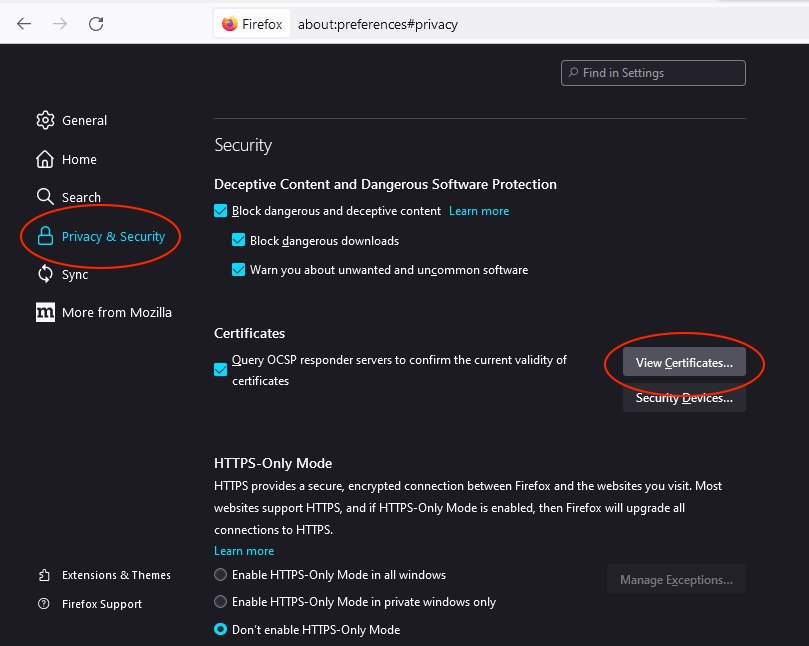
Go to Privacy & Security tab.
-
Scroll down to Certificates and click the View Certificates button.
-
Select Authorities tab.
-
Click Import....

-
Browse the downloaded cert.cer file and click Open.
-
Check the Trust this CA to identify websites box and then click OK.
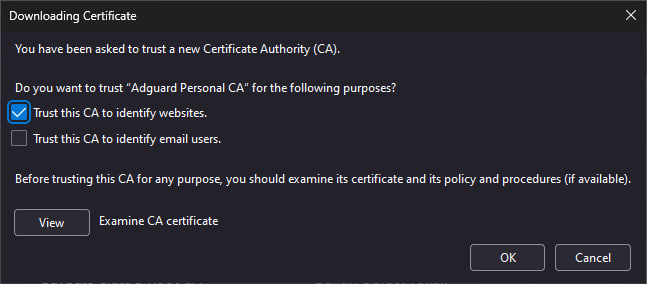
これで、AdGuard証明書のインストールは完了です。ブラウザを再起動すればエラーは解消するはずです。
Yandex.Browser証明書の警告
AdGuard for Windows と Yandex.Browserの両方のユーザーであれば、この警告に出くわしたことがあるかもしれません:
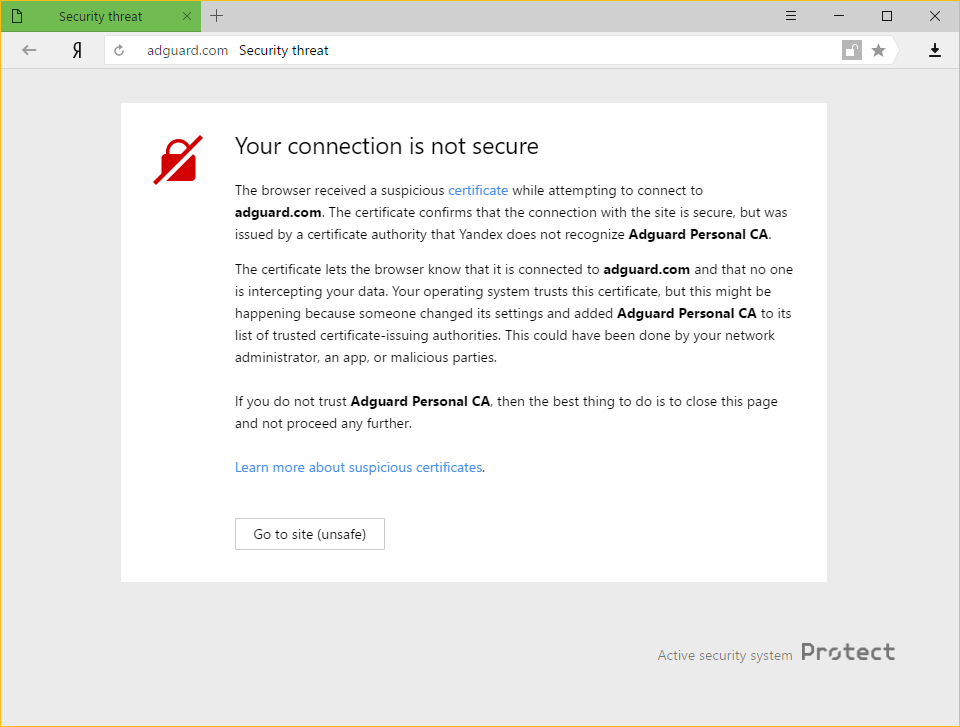
なぜこのようなことが起こるのか
AdGuardとYandexの両社は、インターネット上のユーザーのセキュリティを非常に重視しています。現在の Yandex のポリシーでは、ブラウザで認識されない証明書についてはユーザーに警告することになっています。これは根拠のない話ではありません。悪意のあるアプリが独自の証明書を挿入し、それを使ってシステムに危害を加えたり、個人情報を盗んだりすることがあるからです。
しかし、AdGuardもその証明書を信頼できるものに追加します。これにより、例の警告メッセージが表示されます。
この問題を解決する方法
The easiest way is to click the Go to site button. これによりYandex.Browserは、しばらくの間はAdGuard証明書を信頼できるものとして記憶するようになります。通常、例のメッセージを見ることはなくなりますが、何らかの理由で時折表示される可能性はゼロではありません。 In such cases, simply press the same button again (make sure it is AdGuard's certificate!).
Disabling the HTTPS filtering in AdGuard will also prevent Yandex.Browser from showing this message again, but it comes with a big price: all ads that are loaded by HTTPS (including Yandex's own ads) will show up — on such websites as YouTube, Facebook, Instagram, and many more. 広告ブロックの質を高く保ちたいのであれば、HTTPSフィルタリングをオフにする方法はお勧めできません。
Non-official add-ons don’t update in Firefox-based browsers
If you use Firefox-based browsers and have add-ons that aren’t from Mozilla’s official catalog — and HTTPS filtering is enabled in AdGuard — those add-ons won’t be able to update. Here’s why.
To update add-ons, Firefox checks whether the connection to the update server is secured with a certificate issued by a trusted certificate authority (CA). Firefox-based browsers only trust certificates from CAs included in Mozilla’s built-in list — it’s a security measure to block potentially unsafe updates.
AdGuard’s certificate, although secure, isn’t on that list. That is why Mozilla domains are excluded from HTTPS filtering in AdGuard.
However, non-official add-ons use third-party servers for updates, and those are not excluded from HTTPS filtering by default. So when Firefox checks the connection, it sees AdGuard’s certificate instead of the original one — and blocks the update.
If you need to check for updates for such add-ons, consider temporarily disabling AdGuard.