インストール/アンインストール
この記事は、Safariブラウザでのみ機能する「AdGuard Mini for Mac」に関するものです。 Mac全体を保護するには、AdGuardアプリをダウンロードしてください。
動作環境
macOS 12以降が必要です。
AdGuard Mini for Mac のインストール方法
「AdGuard Mini」はMac用App Storeにある無料アプリです。 お使いのMacにインストールする方法以下の通りです。
Open the App Store and find AdGuard Mini app there.

Press Get → Install → Open.
In the opened AdGuard Mini window, accept EULA and Privacy policy. Here you can also choose to help us improve the extension by sending anonymized usage data. Then click Continue.
 note
noteIf you choose to share app usage data with AdGuard, the extension will collect anonymized information such as UI interactions and session identifiers. This consent is optional and can be withdrawn at any time. All collected data is fully anonymized, used only internally, and never shared with third parties.
Click Open settings.
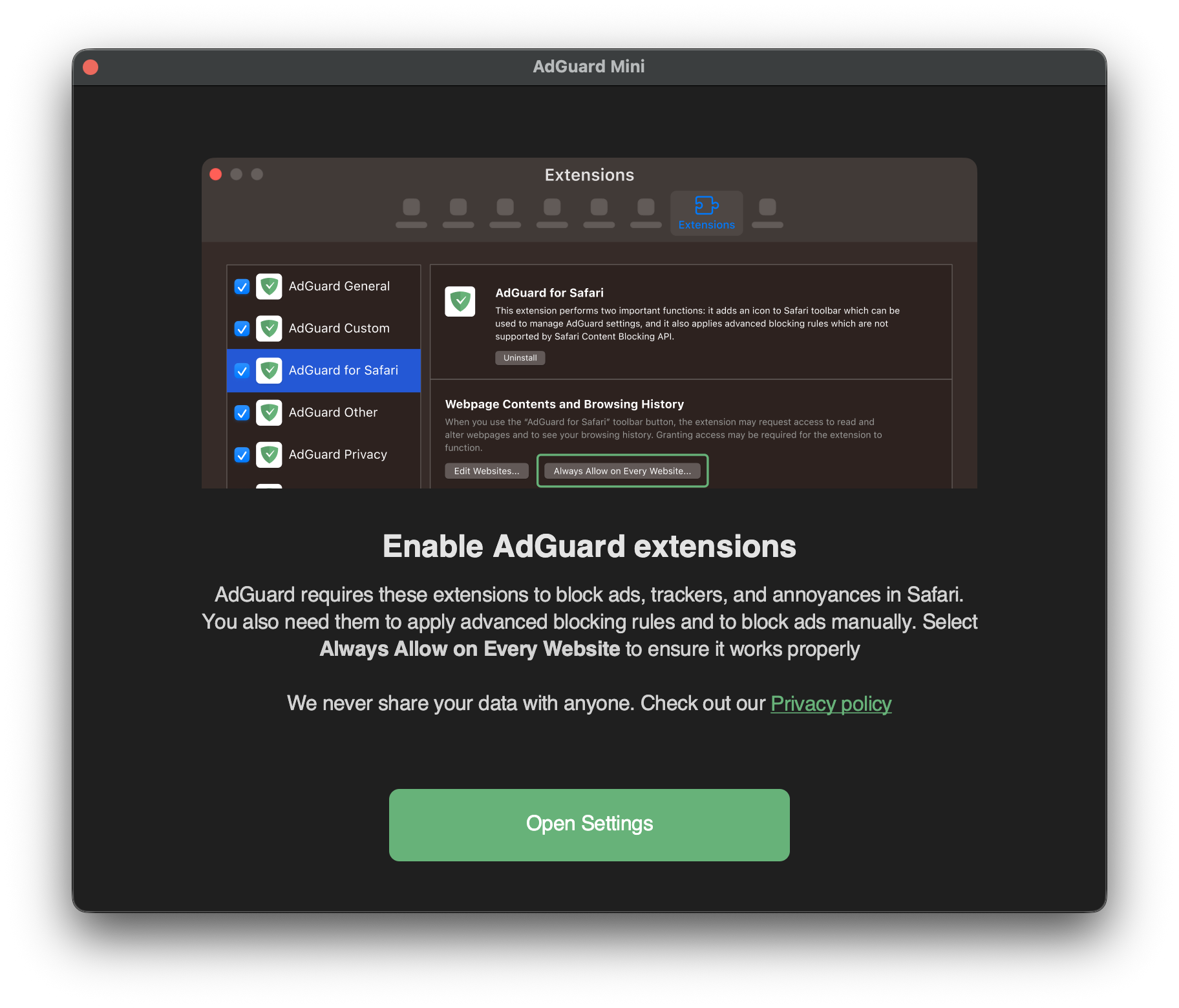
Check the checkboxes for all seven AdGuard extensions.
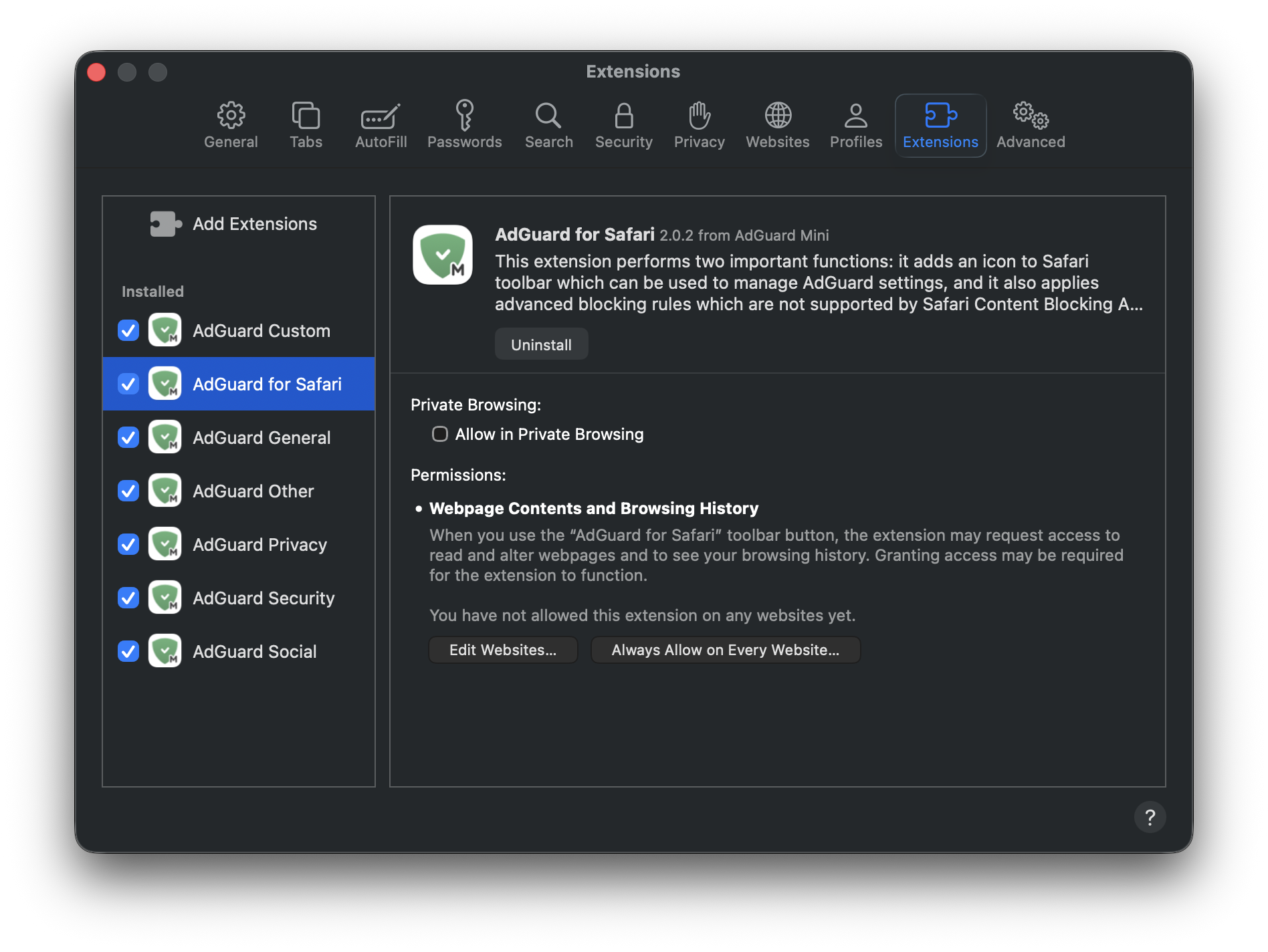
To allow AdGuard Mini to work on all websites, click the AdGuard for Safari extension and then Always Allow on Every Website....
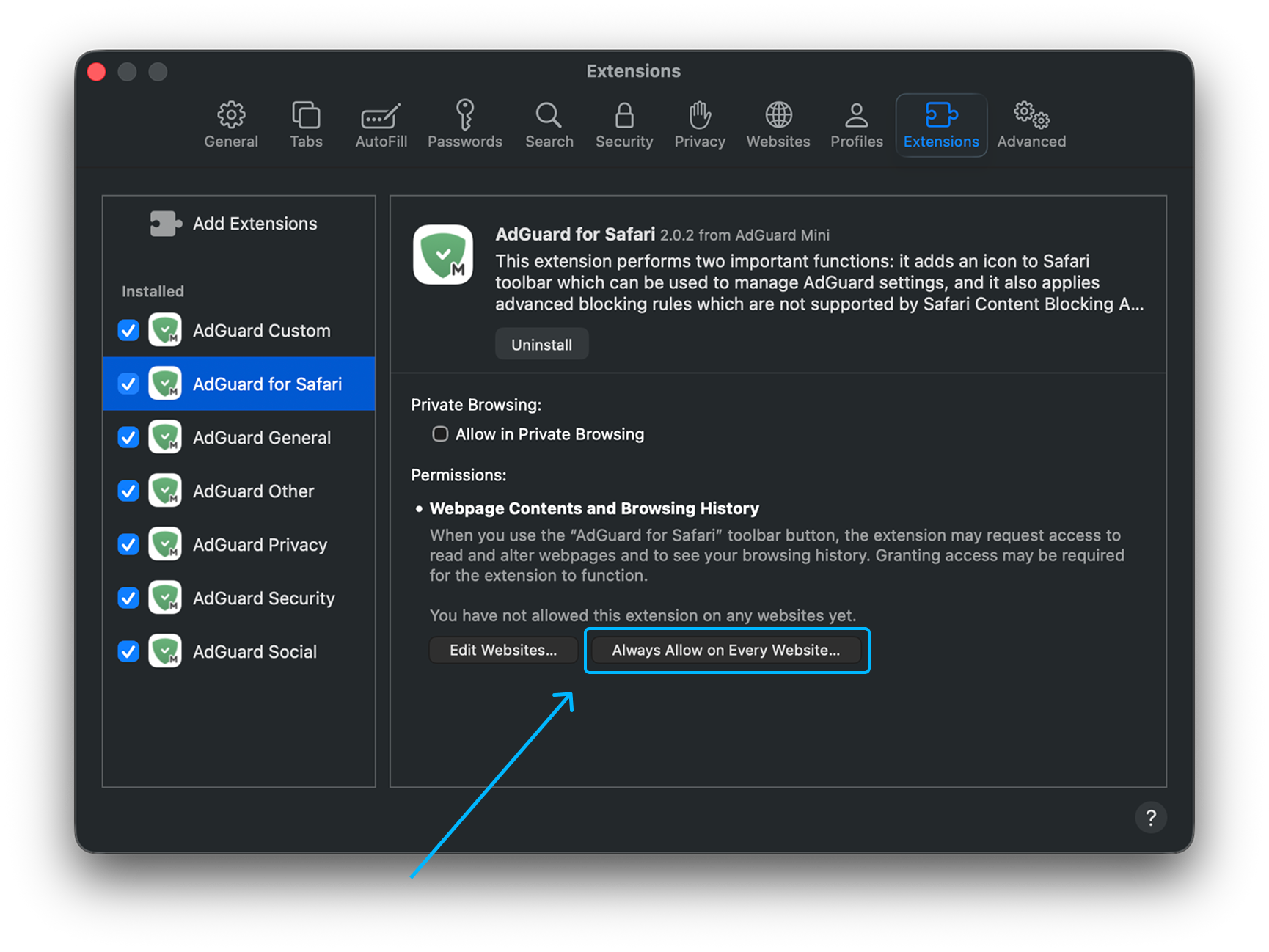
In the notification that appears, click Always Allow on Every Website... again.
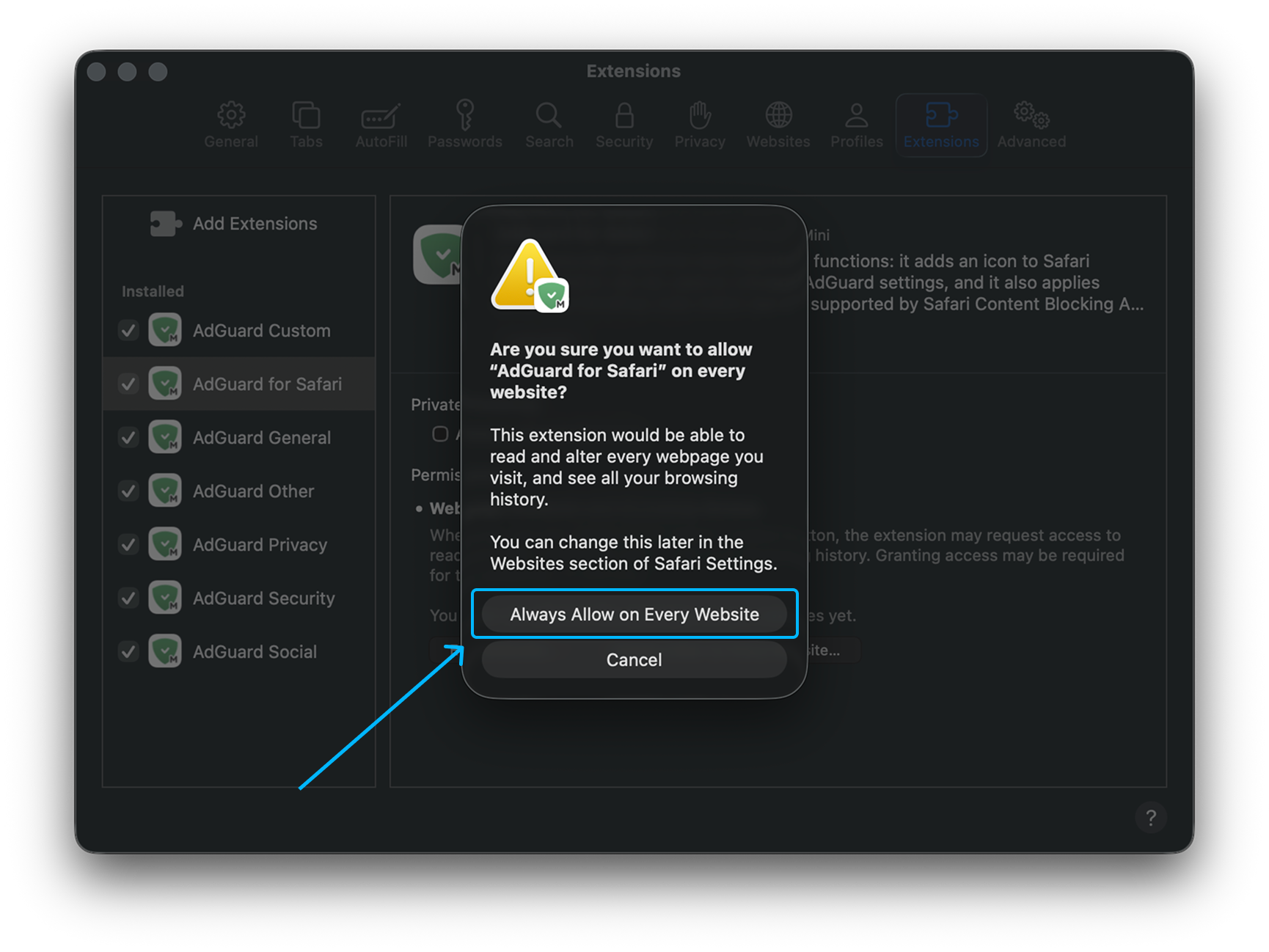
After you complete these steps, AdGuard Mini for Mac will start functioning in Safari.
How to uninstall AdGuard Mini for Mac
To uninstall AdGuard Mini for Mac, do the following:
AdGuard Mini アプリを終了します。
左上のメニューで「Safari」をクリックします。
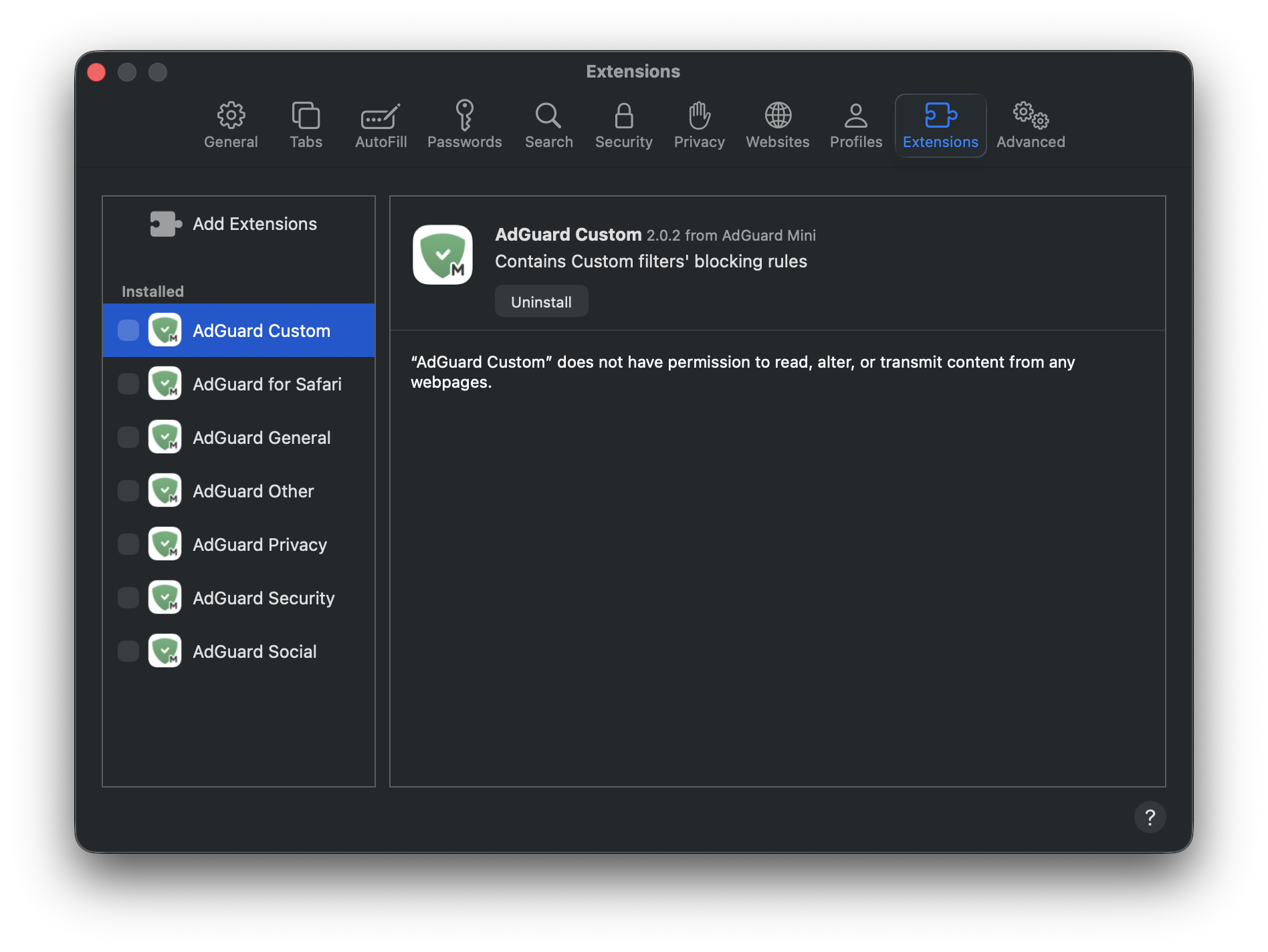
「環境設定…」→「拡張機能」をクリックします。 拡張機能の一覧が表示され、AdGuardには7つの拡張機能があります。
AdGuard拡張機能すべてのチェックボックスのチェックを外し、それぞれの「アンインストール」ボタンを押します。
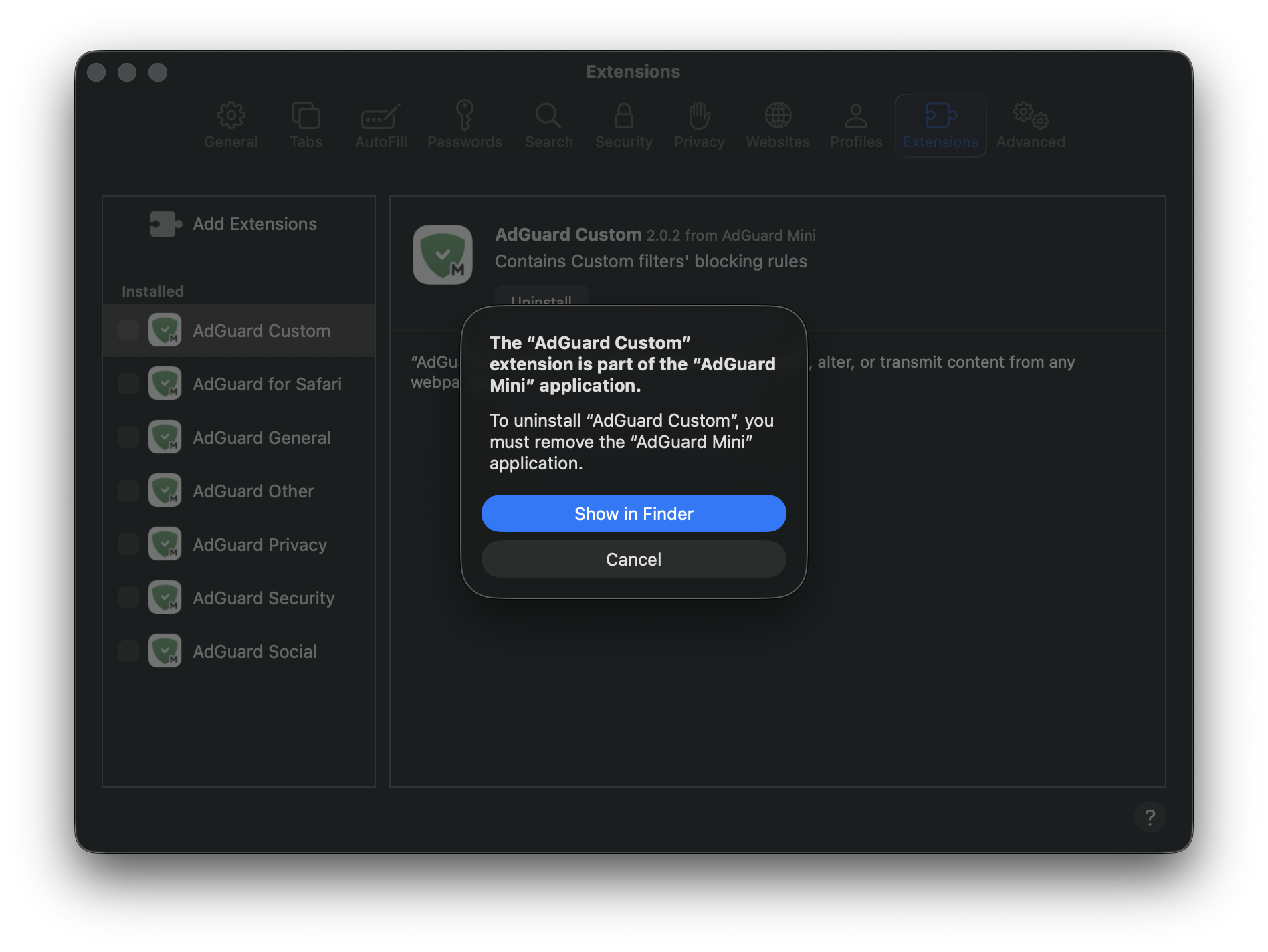
In the notification that appears, press Show in Finder.
Right-click AdGuard Mini and choose Move to trash.
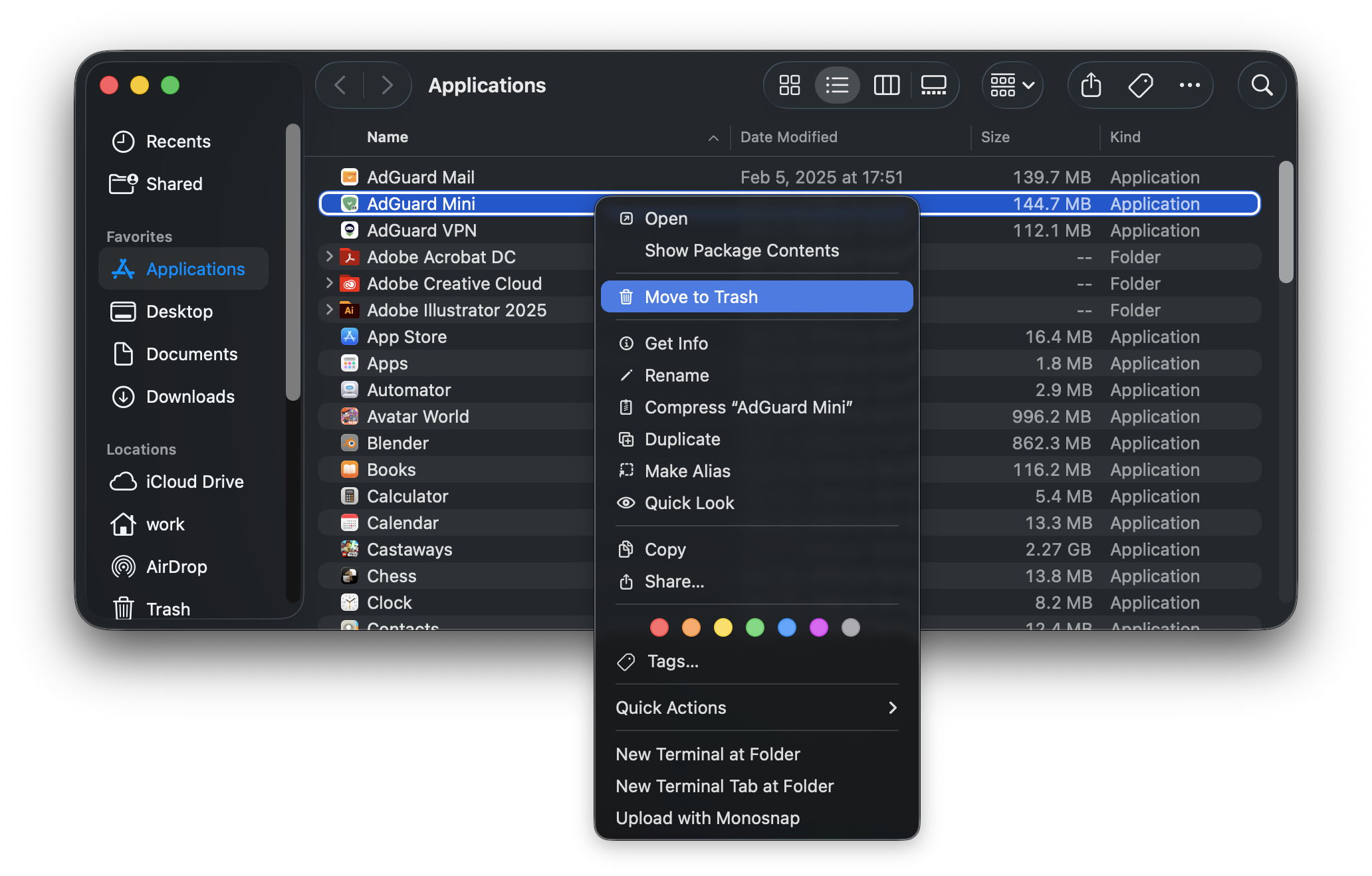
AdGuard Mini for Mac will be removed from your device.