Problemi relativi ai certificati
Questo articolo riguarda AdGuard per Windows, un blocca-inserzioni multifunzionale che protegge il tuo dispositivo a livello di sistema. Per vedere come funziona, scarica l'app di AdGuard
Per poter filtrare il traffico HTTPS e bloccare efficientemente annunci e tracciatori, AdGuard genera un certificato di root speciale (e univoco) e lo installa nell'archivio di sistema. You can learn more about why a certificate is required by reading this article.
Normalmente, i browser si fidano del certificato di AdGuard una volta aggiunto all'archivio di sistema dei certificati, durante il processo di installazione. Ma in alcuni casi, ciò non è sufficiente e potresti riscontrare avvisi o errori. Ciò si verifica più spesso sui browser basati su Firefox, come Mozilla Firefox, PaleMoon, Waterfox, etc. o su Yandex.Browser.
Here are some common issues:
- Potential Security Risk error in Firefox-based browsers
- Yandex.Browser certificate warning
- Non-official add-ons don’t update in Firefox-based browsers
Potential Security Risk error in Firefox-based browsers
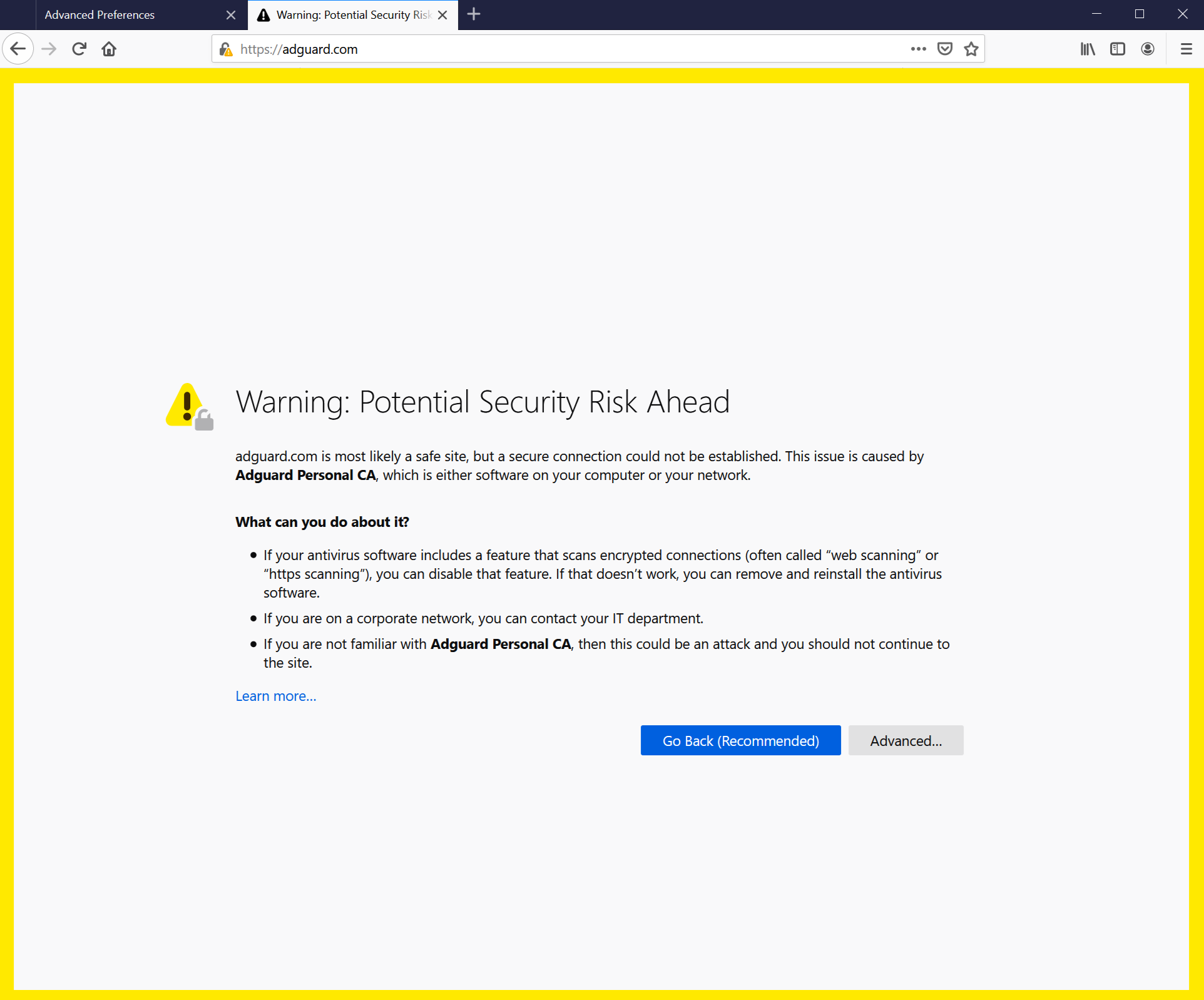
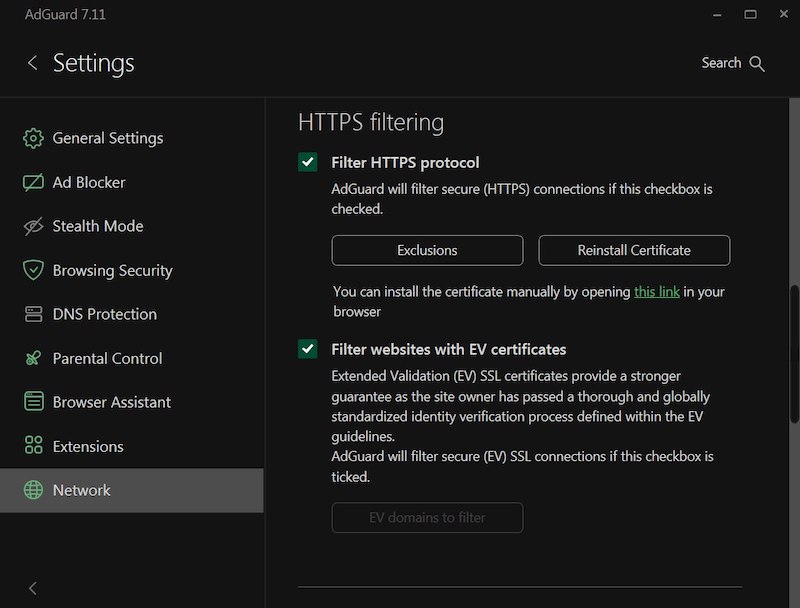
Le vecchie versioni di Firefox, nonché i browser basati su di esse, non si fidano dei certificati dall'archivio di sistema, ma soltanto di quelli dal proprio archivio locale. Dalla v68, Firefox si fida dei certificati di sistema, ma puoi ancora riscontrare l'errore "Connessione non attendibile". If something like this happens, first try to click the Reinstall Certificate button — you will find it in the Network tab.
Se ciò non aiuta, segui le istruzioni per l'aggiunta manuale del certificato di AdGuard all'archivio di Firefox.
Queste istruzioni sono per il browser Firefox. I nomi dei pulsanti e degli elementi del menu potrebbero differire in altr browser basati su Firefox.
-
Esegui AdGuard.
-
Go to https://local.adguard.org/cert and click the Download button. The browser should start downloading cert.cer file.
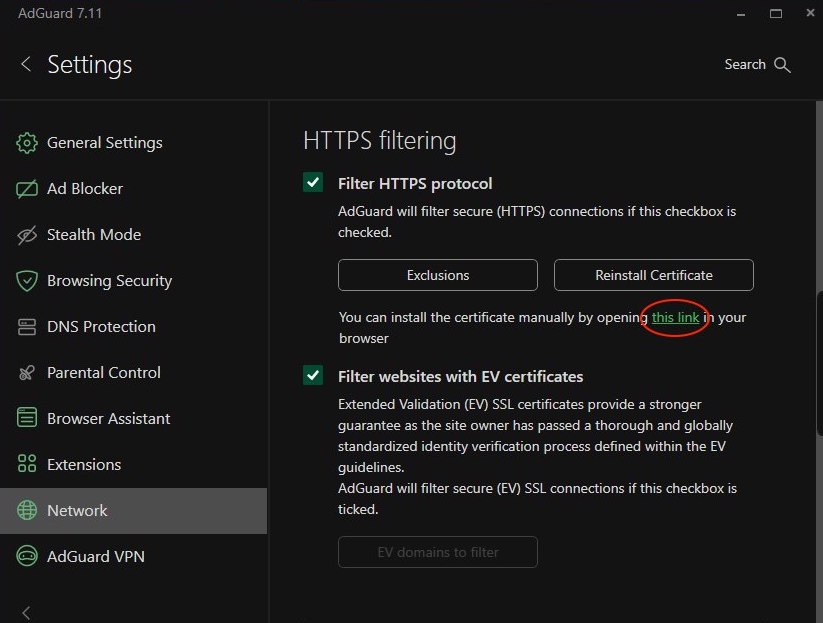
notaYou can also open the download page by clicking the link via the AdGuard app at Settings → Network → HTTPS filtering.
-
Open your browser and then open Settings.
-
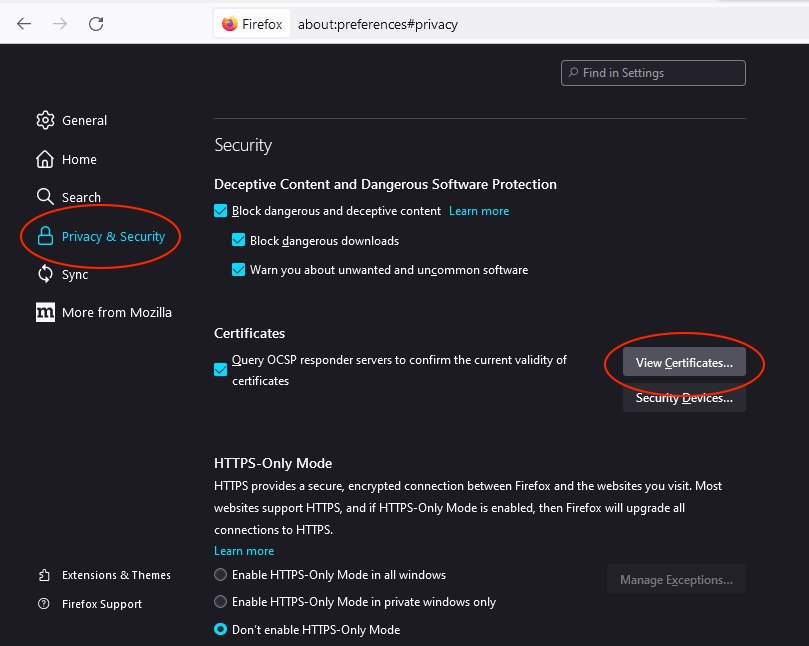
Go to Privacy & Security tab.
-
Scroll down to Certificates and click the View Certificates button.
-
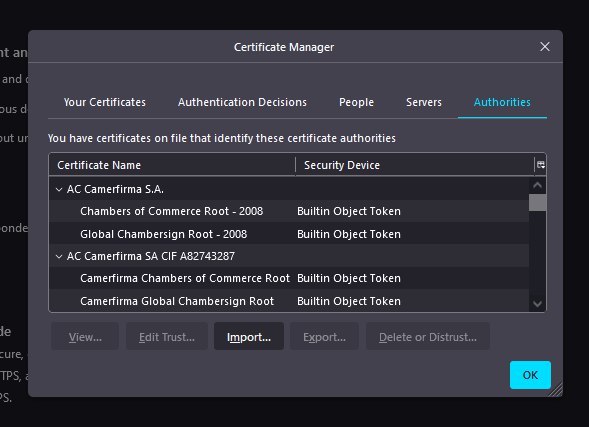
Select Authorities tab.
-
Click Import....
-
Browse the downloaded cert.cer file and click Open.
-
Check the Trust this CA to identify websites box and then click OK.
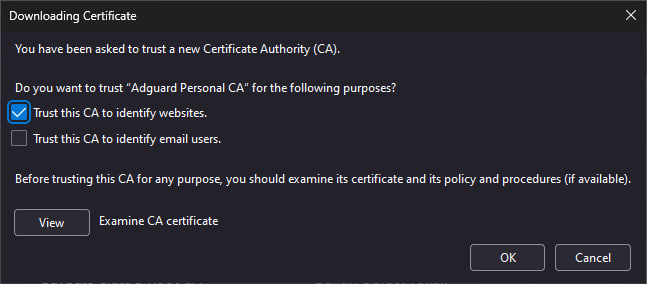
Hai installato correttamente il certificato di AdGuard. Riavvia il browser e l'errore dovrebbe scomparire.
Avviso del certificato di Yandex.Browser
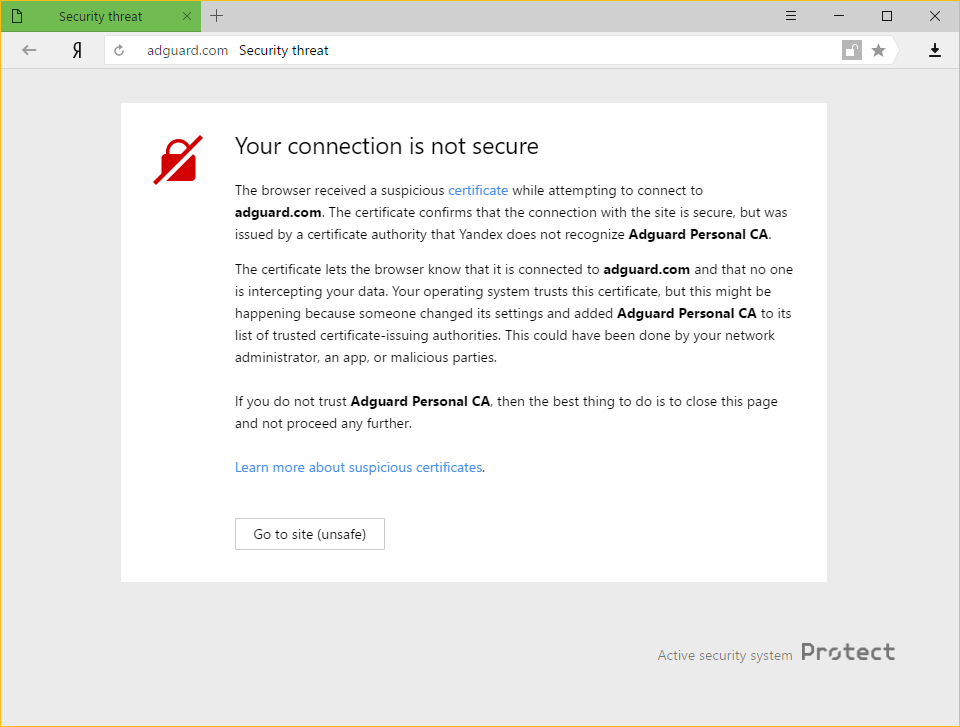
Se sei un utente di AdGuard per Windows e di Yandex.Browser, potresti aver riscontrato questo avviso:
Perché si verifica
Sia AdGuard che Yandex prendono molto sul serio la sicurezza degli utenti su Internet. La politica attuale di Yandex è avvisare i propri utenti di qualsiasi certificato non sia riconosciuto dal browser. Ciò non è privo di fondamento, poiché talvolta le app dannose possono iniettare i propri certificati, e utilizzarli per danneggiare il sistema e rubare dati privati.
Tuttavia, anche AdGuard aggiunge il proprio certificato a quelli attendibili. Ciò causa il messaggio di avviso che hai riscontrato.
Come risolvere il problema
The easiest way is to click the Go to site button. Ciò comunicherà a Yandex.Browser di ricordare il certificato di AdGuard come uno attendibile, almeno per un po'. Normalmente, non dovrai vederlo più, ma non è impossibile che appaia occasionalmente, per qualsiasi motivo. In such cases, simply press the same button again (make sure it is AdGuard's certificate!).
Disabling the HTTPS filtering in AdGuard will also prevent Yandex.Browser from showing this message again, but it comes with a big price: all ads that are loaded by HTTPS (including Yandex's own ads) will show up — on such websites as YouTube, Facebook, Instagram, and many more. Lo sconsigliamo vivamente, se desideri mantenere elevata la qualità di blocco delle inserzioni.
Non-official add-ons don’t update in Firefox-based browsers
If you use Firefox-based browsers and have add-ons that aren’t from Mozilla’s official catalog — and HTTPS filtering is enabled in AdGuard — those add-ons won’t be able to update. Here’s why.
To update add-ons, Firefox checks whether the connection to the update server is secured with a certificate issued by a trusted certificate authority (CA). Firefox-based browsers only trust certificates from CAs included in Mozilla’s built-in list — it’s a security measure to block potentially unsafe updates.
AdGuard’s certificate, although secure, isn’t on that list. That is why Mozilla domains are excluded from HTTPS filtering in AdGuard.
However, non-official add-ons use third-party servers for updates, and those are not excluded from HTTPS filtering by default. So when Firefox checks the connection, it sees AdGuard’s certificate instead of the original one — and blocks the update.
If you need to check for updates for such add-ons, consider temporarily disabling AdGuard.