Instalación
Este artículo trata sobre AdGuard para Windows, un bloqueador de anuncios multifuncional que protege tu dispositivo a nivel de sistema. To see how it works, download the AdGuard app.
Requisitos del sistema
- OS version: Microsoft Windows 10 or higher
- RAM: at least 6 GB
- Processor: 2-core, 2.0 GHz (or faster)
- Free disk space: at least 4 GB
Cómo instalar AdGuard
-
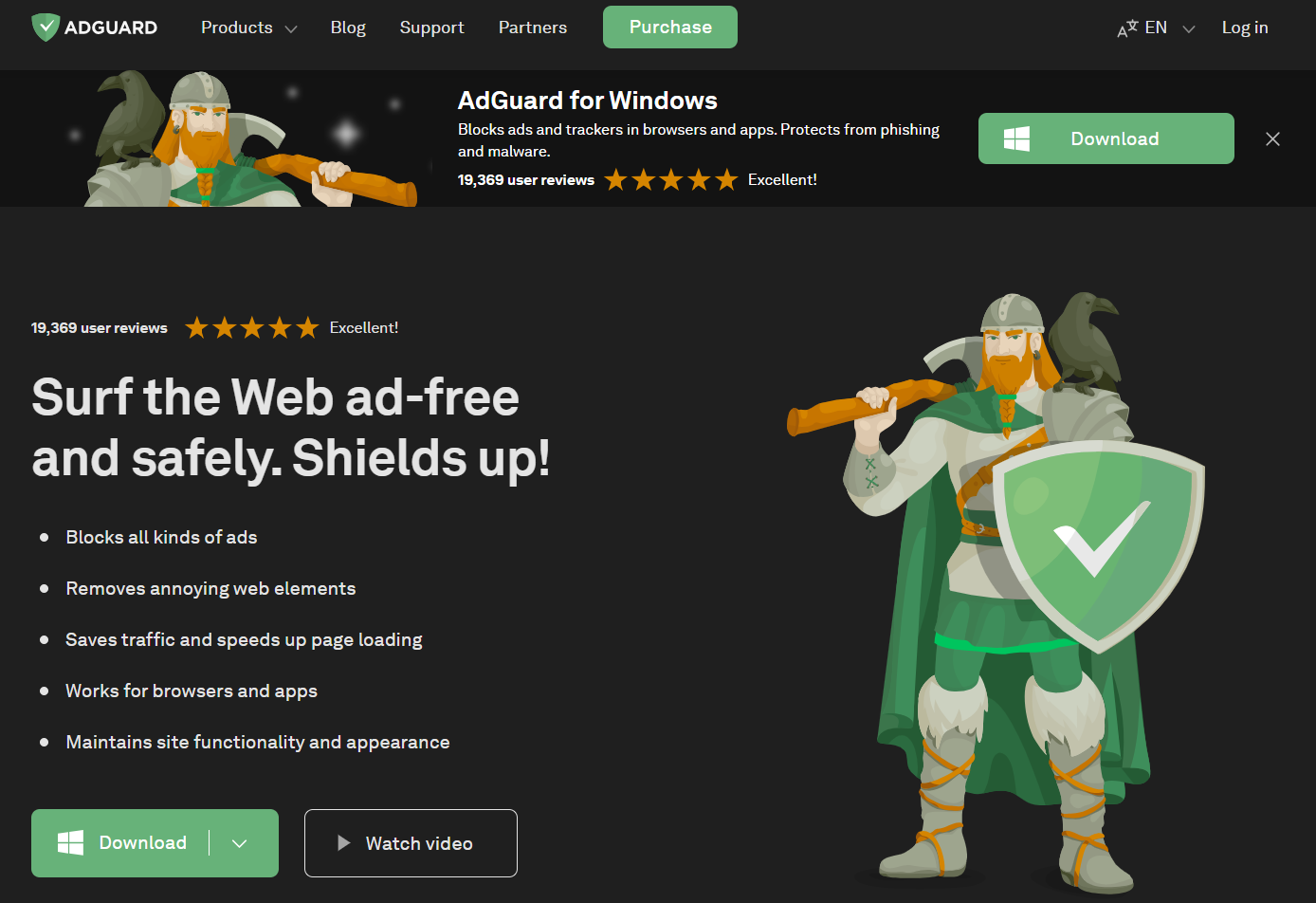
Go to the AdGuard website and click Download. You can also get the installer from the download page — the download will start automatically.
-
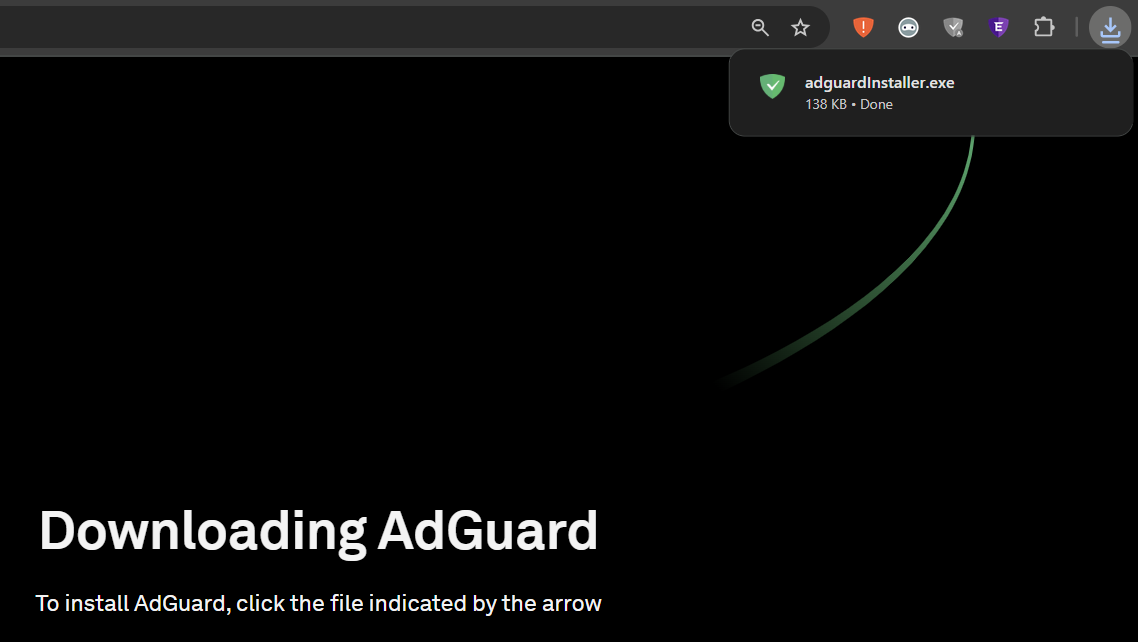
Once the download is complete, open the file adguardInstaller.exe.
-
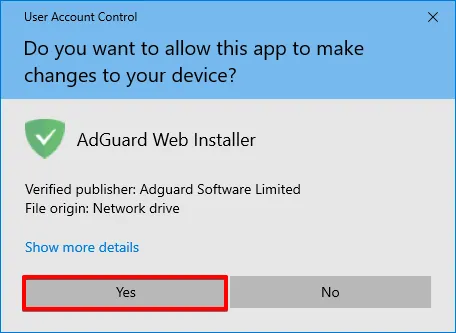
You’ll see a User Account Control prompt asking if you want to allow the app to make changes to your PC. Haz clic en Sí.
-
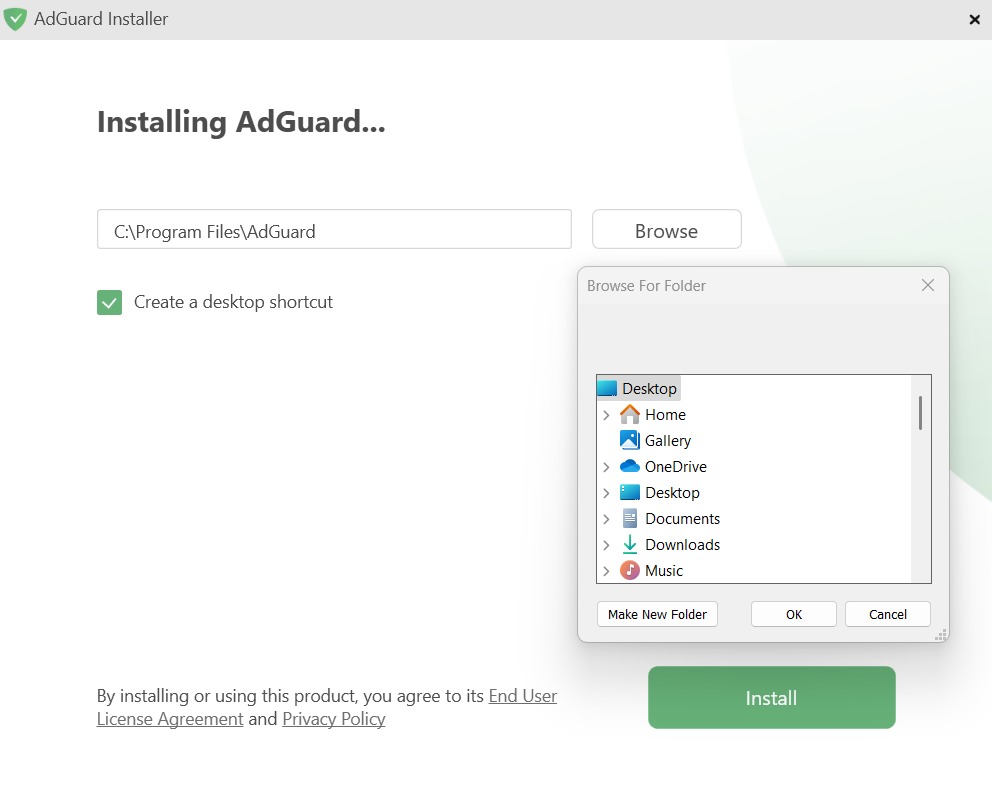
Choose the folder where you want AdGuard to be installed and click Save.
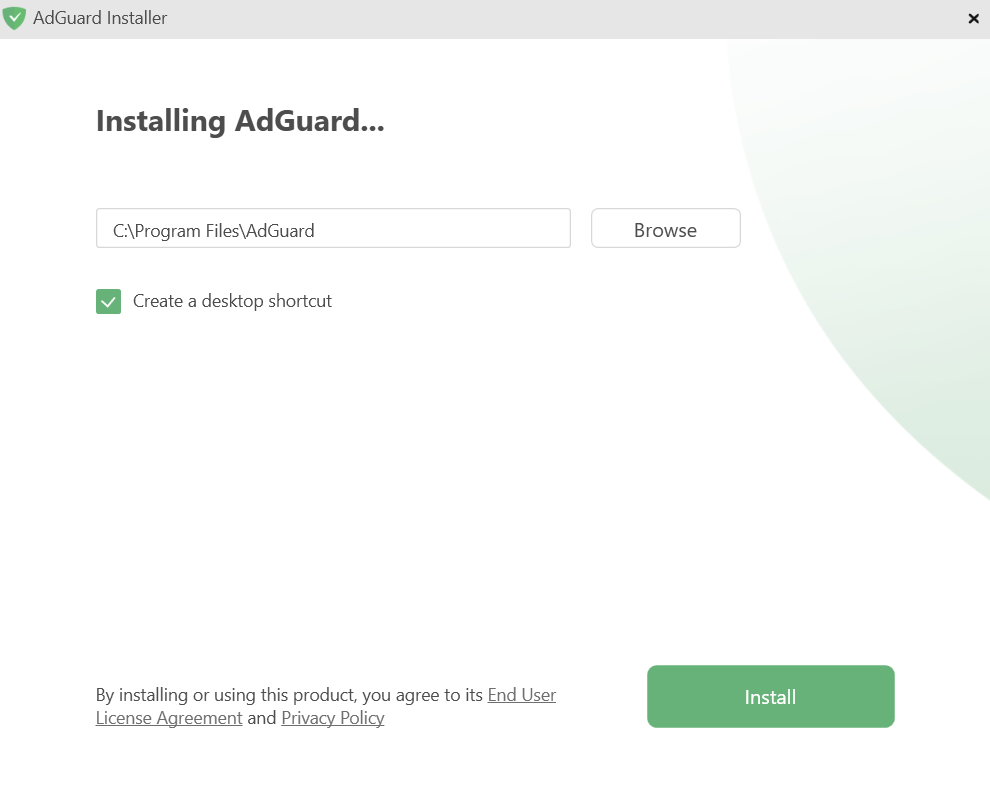
If you want to select a different location, click Browse, choose the folder, and click OK. You can also create a new folder by clicking Make New Folder and naming it. If you’d like a desktop shortcut, check the box Create a desktop shortcut. Then click Install to start the installation.
-
Espera a que se complete la instalación y haz clic en Finalizar.
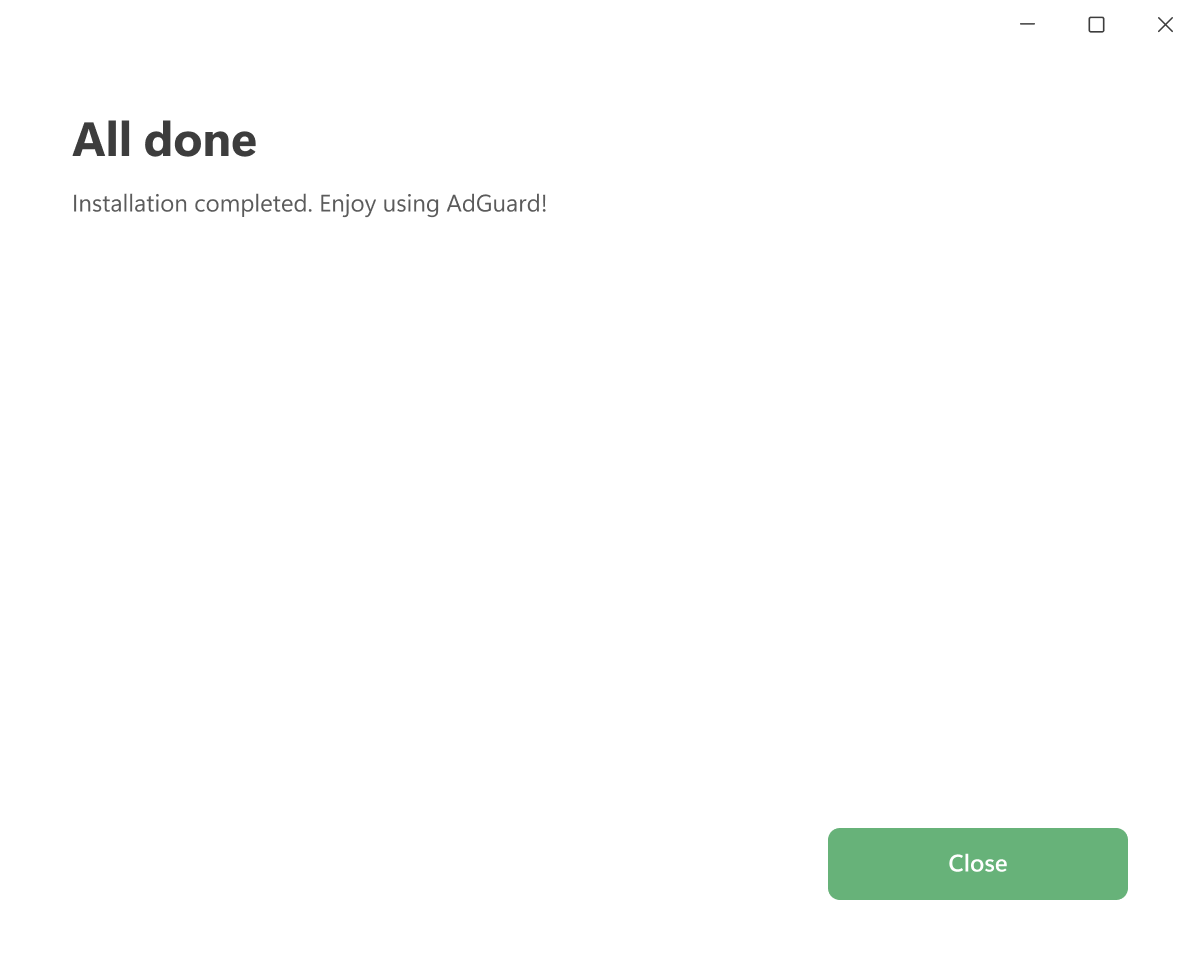
AdGuard has been successfully installed. When you launch the app, you’ll be prompted to accept our privacy documents and set up protection according to your preferences.


Cómo desinstalar AdGuard para Windows
Método regular
If you need to uninstall or reinstall AdGuard, do the following:
Open the Start Menu, then select Settings. In the window that opens, click Apps → Installed apps. Select AdGuard from the list of your installed apps, click the three-dot menu, and select Uninstall. After the app is uninstalled, restart your computer.
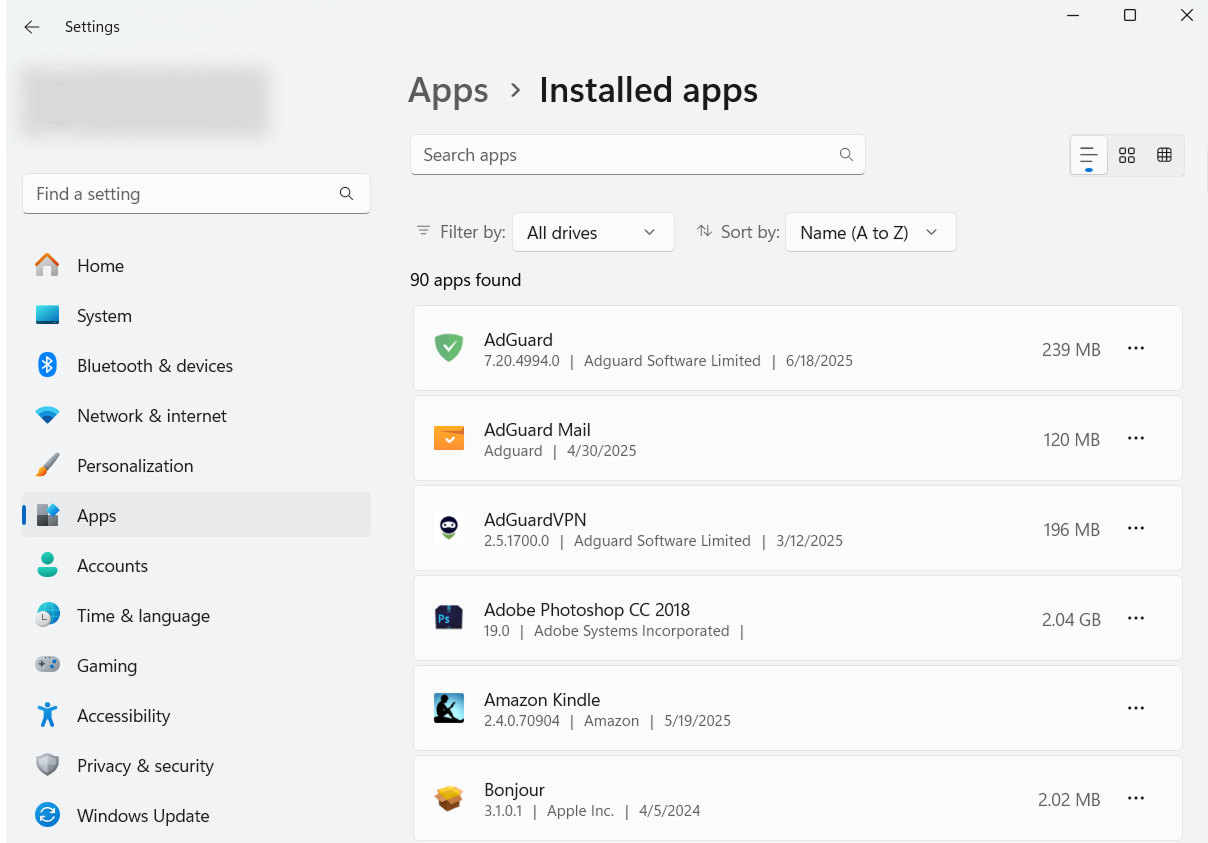
The uninstaller automatically creates a backup of your settings in C:\ProgramData\Adguard\Backups. If you plan to reinstall AdGuard later, you can use this backup to restore your settings. For more information, see How to back up and restore AdGuard settings.
Método avanzado
If the regular uninstall doesn’t work for any reason, you can use the advanced method. First, download the uninstaller tool created by our developers. Extract the archive to any folder on your PC and run Adguard.UninstallUtility.exe, then allow the app to make changes to your device.
-
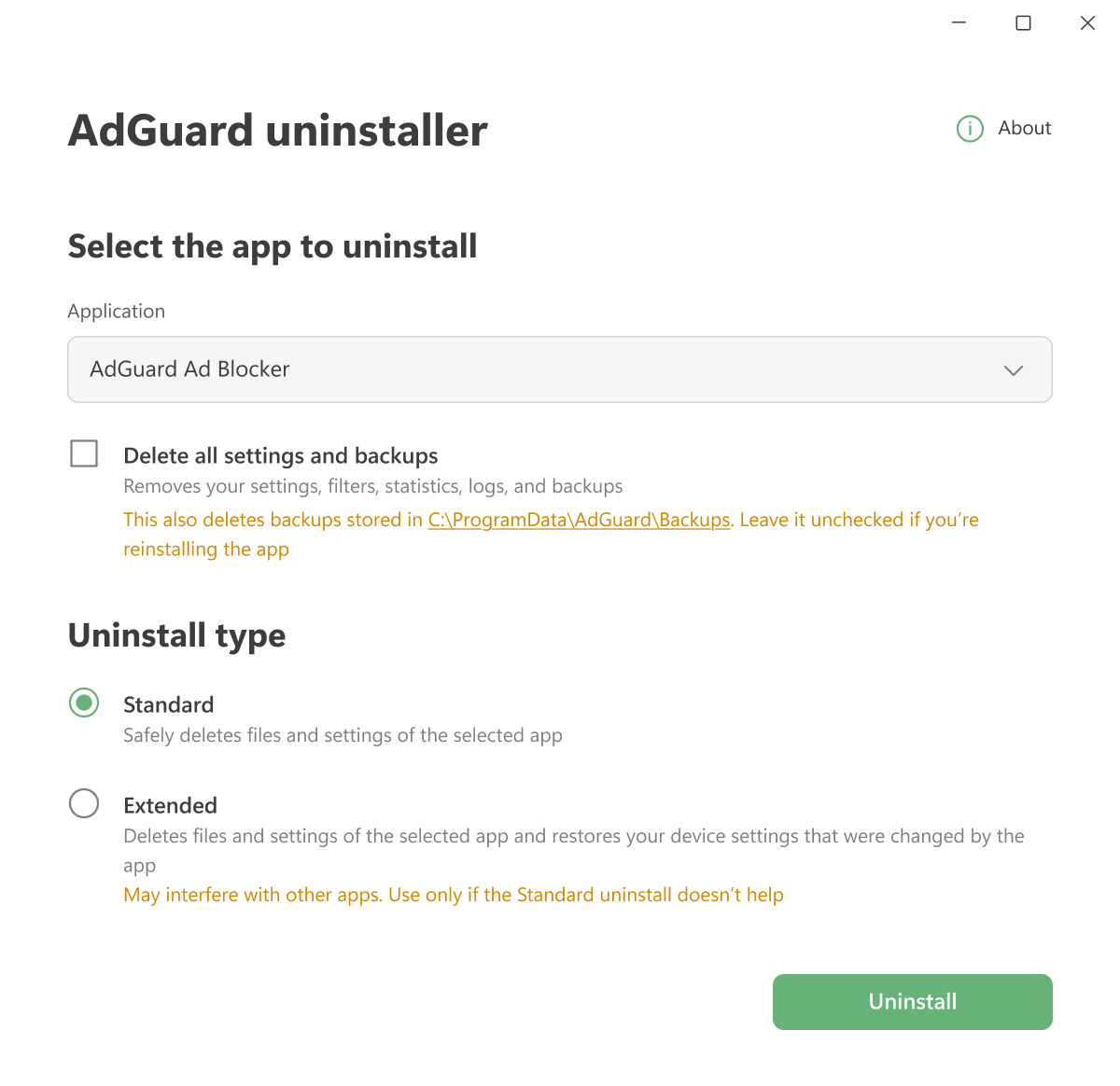
Select AdGuard Ad Blocker and Standard uninstall type, then click Uninstall.
-
Wait until the uninstall is finished and restart your computer.
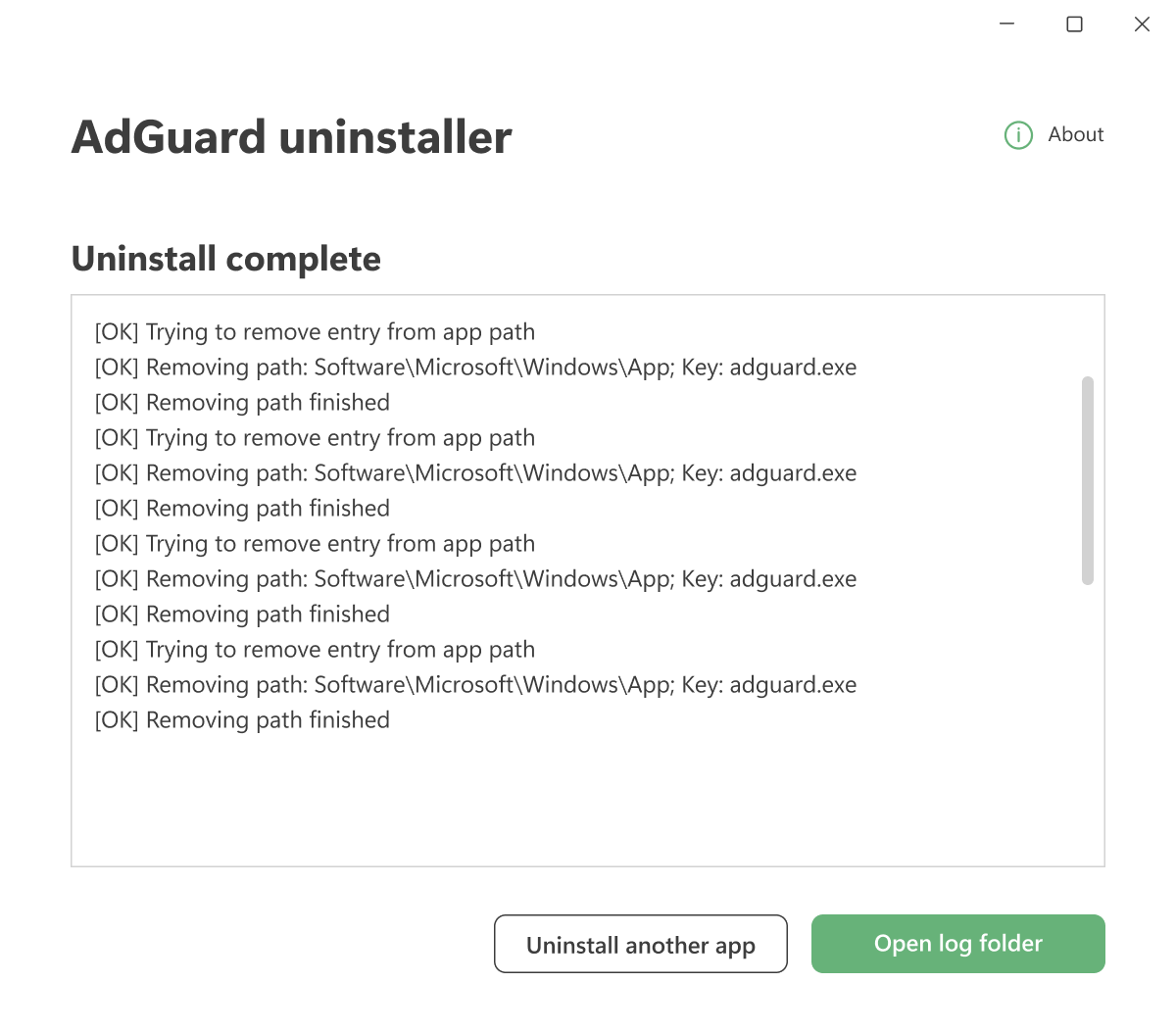
Follow the next steps only if the Standard uninstall didn’t fully remove AdGuard. We strongly suggest contacting our support before using the Extended uninstall.
-
Select AdGuard Ad Blocker and Extended. Click Yes, continue in the prompt and then click Uninstall.
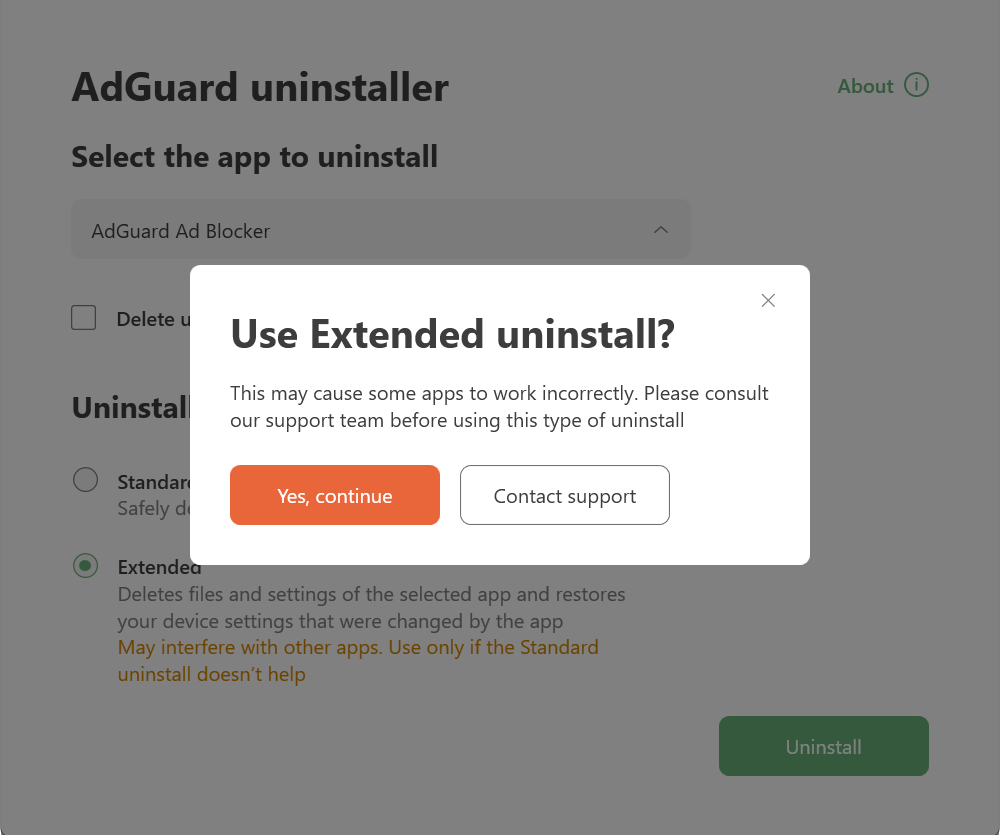
-
Wait until the uninstall is finished and restart your computer.
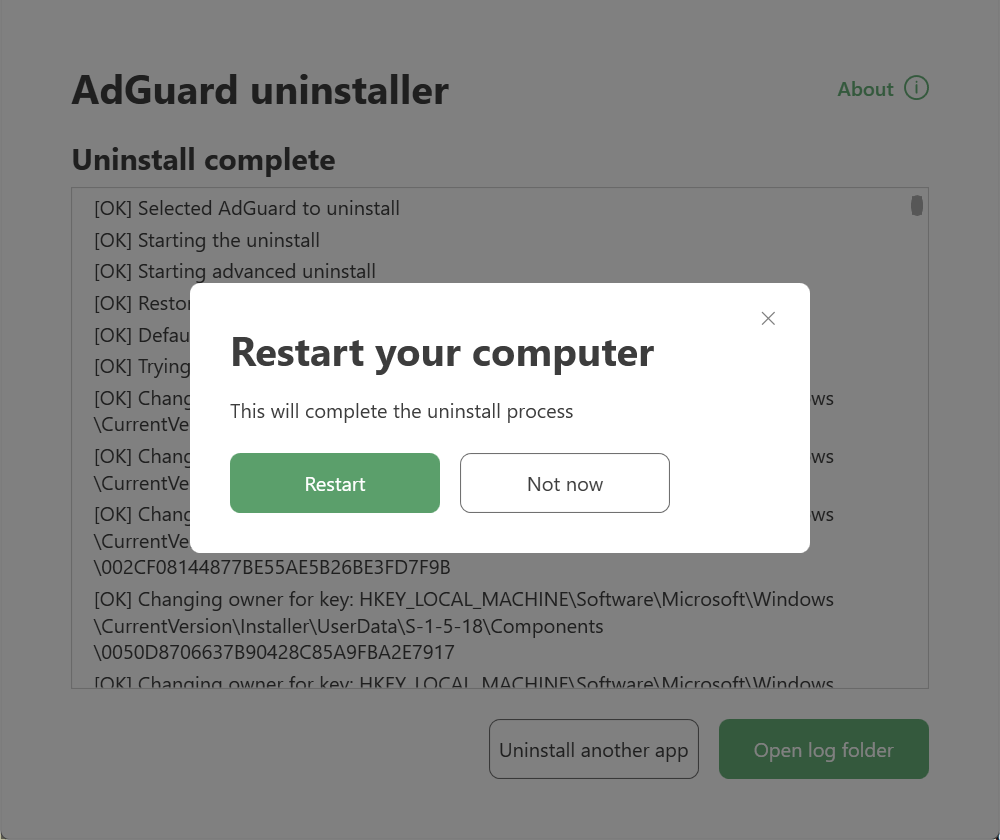
AdGuard is successfully uninstalled!
Running the uninstaller in console mode
You can also use command-line arguments to uninstall AdGuard for Windows.
-
Open Command Prompt by typing
cmdin the Start menu. -
Use
/consoleto run the uninstaller in console mode, without the interactive UI. All the command-line parameters below will be ignored if the/consolemode is not activated. -
Use
/adblockerto uninstall AdGuard for Windows. Debería verse así:Adguard.UninstallUtility.exe /console /adblocker -
You can also use
/advancedto force the uninstaller to run in Extended mode and/settingsto force the uninstaller to remove user settings along with the application.
The parameters /console and /adblocker are necessary for a successful uninstall. The parameters /advanced and /settings are optional.