How to switch back to v7 after updating to v8.0
Dieser Artikel behandelt AdGuard für Windows, einem multifunktionalen Werbeblocker, der Ihr Gerät auf Systemebene schützt. Um zu sehen, wie es funktioniert, laden Sie die AdGuard-App herunter
How to switch back to v7 after updating to v8.0
AdGuard for Windows v8.0 introduces significant changes. If you find the new interface uncomfortable or encounter issues, you can switch back to version 7.
If you wish to preserve your settings, it’s recommended that you export them before changing versions. You can then import your saved settings after updating the app. The steps needed to do so are listed below.
-
After upgrading to v8, open the folder
C:\ProgramData\Adguard\Backupsand find a ZIP file with a name similar toadguard_settings_7.22.5008.0-08-04-2025-13_42_15.276.zip. -
Copy this ZIP file somewhere outside
C:\ProgramData\Adguard, for example, to your Desktop. This is important because the folder will be cleaned during the next step. -
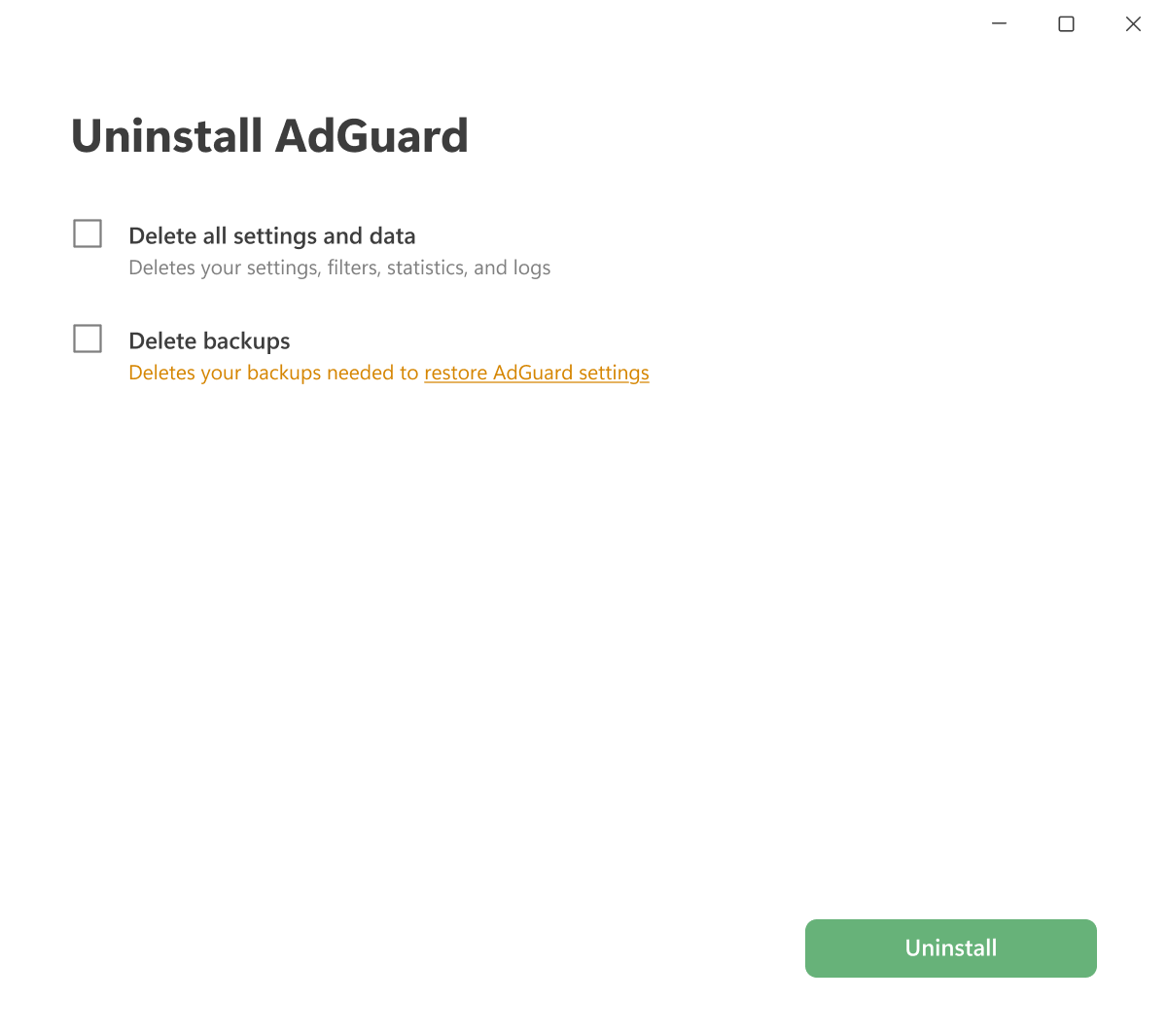
Uninstall v8.0 via Settings → Apps → Installed apps. In the uninstaller dialog, check the box to remove all user settings and data so that no v8 leftovers remain.
 Hinweis
For step-by-step instructions, see How to uninstall AdGuard for Windows.
-
Install the previous version. You can find the download link in the Assets section of the latest stable v7 release on GitHub.
-
Exit version 7 from the system tray to stop filtering.
-
Extract the contents of the ZIP file from step 2 and replace the following files:
adguard.db→C:\ProgramData\Adguard— main settings database, including filters and custom rulesagflm_dns.db→C:\ProgramData\Adguard\FLM— DNS filter databaseagflm_standard.db→C:\ProgramData\Adguard\FLM— standard filter database
-
Starten Sie AdGuard. Version 7 will start with your previous settings restored.