Instalace
Tento článek popisuje AdGuard pro Windows, multifunkční blokátor reklam, který chrání vaše zařízení na úrovni systému. Chcete-li zjistit, jak funguje, stáhněte si aplikaci AdGuard.
Požadavky na systém
- OS version: Microsoft Windows 10 or higher
- RAM: at least 6 GB
- Processor: 2-core, 2.0 GHz (or faster)
- Free disk space: at least 4 GB
Jak nainstalovat AdGuard
-
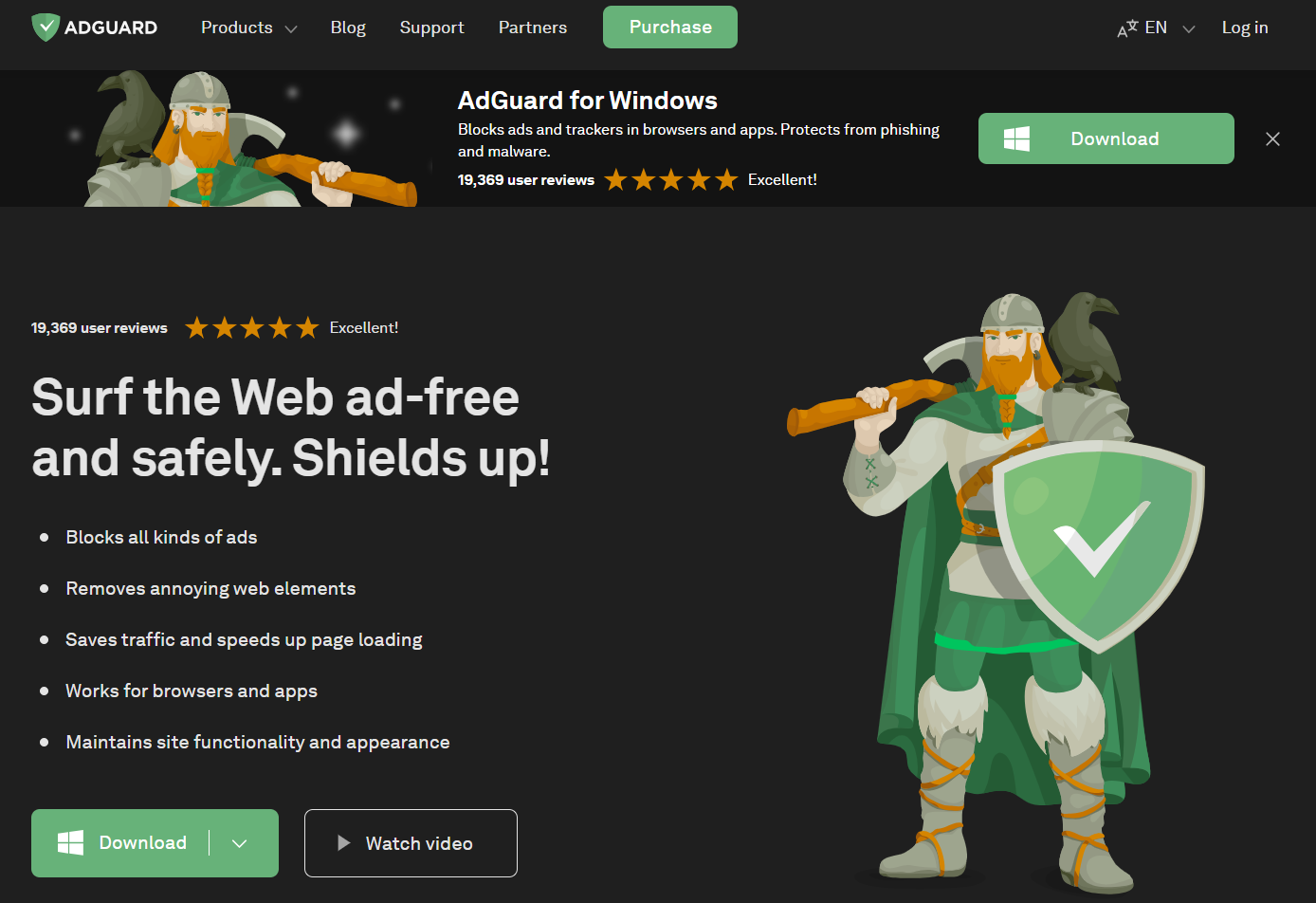
Přejděte na webové stránky AdGuardu a klikněte na Stáhnout. You can also get the installer from the download page — the download will start automatically.
-
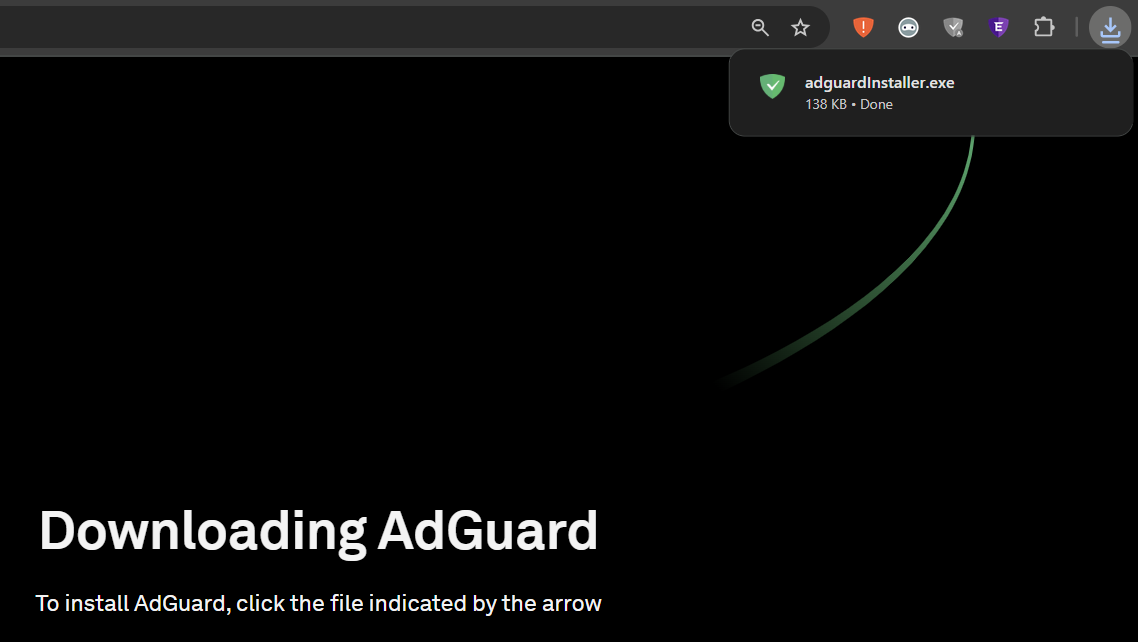
Po dokončení stahování otevřete soubor adguardInstaller.exe.
-
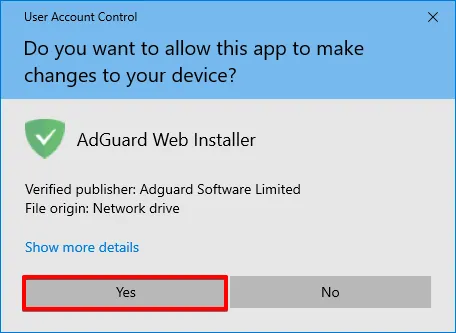
Zobrazí se výzva Řízení uživatelských účtů s dotazem, zda chcete aplikaci povolit provádět změny v počítači. Klikněte na Ano.
-
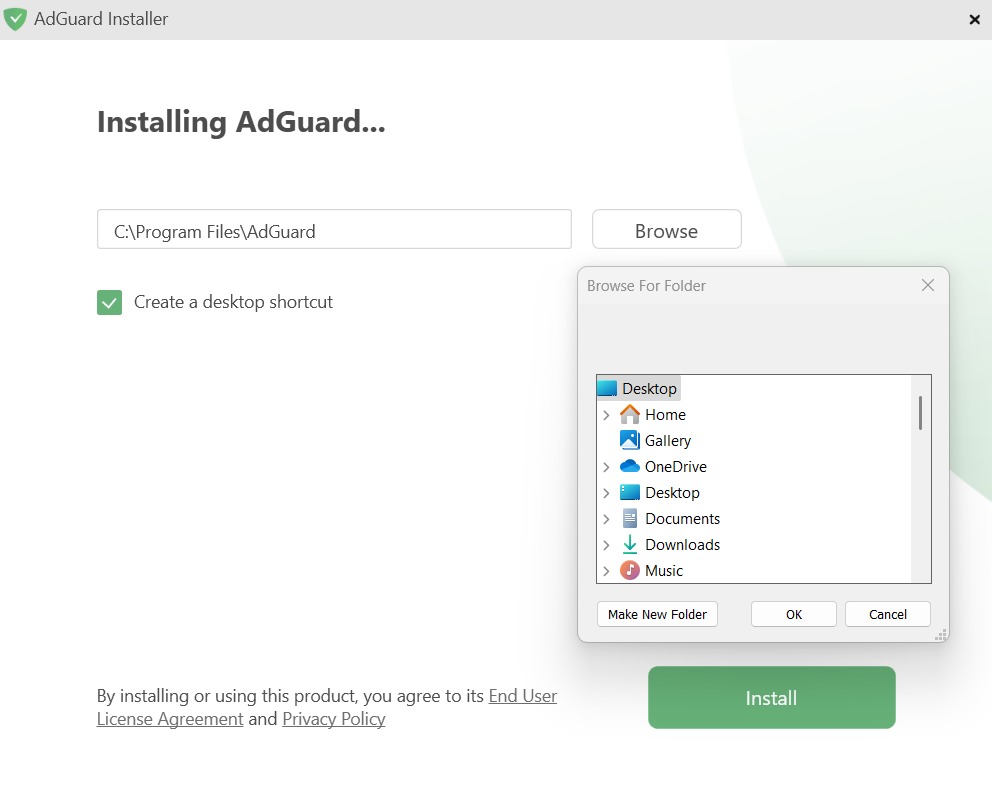
Choose the folder where you want AdGuard to be installed and click Save.
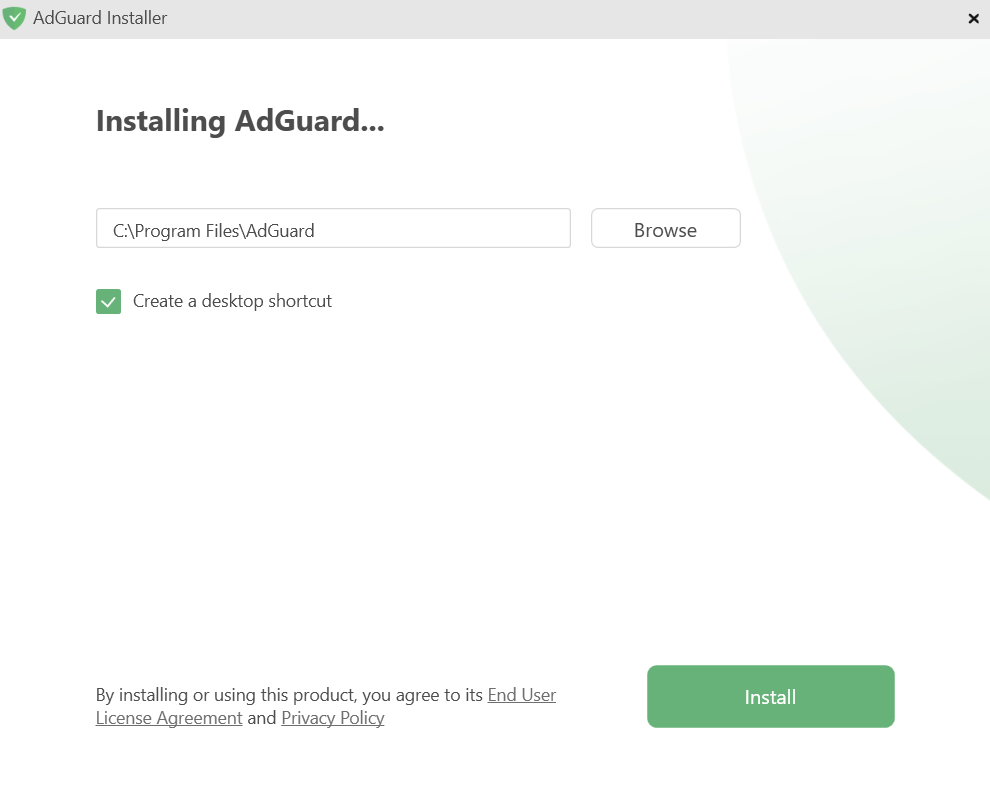
Pokud chcete vybrat jiné umístění, klikněte na Procházet, vyberte složku a klikněte na OK. Novou složku můžete vytvořit také kliknutím na Vytvořit novou složku a pojmenovat ji. Chcete-li vytvořit pro AdGuard zástupce na ploše, zaškrtněte políčko Vytvořit zástupce na ploše. Stiskněte Instalovat a pokračujte v instalaci.
-
Počkejte na dokončení instalace a klikněte na Dokončit.
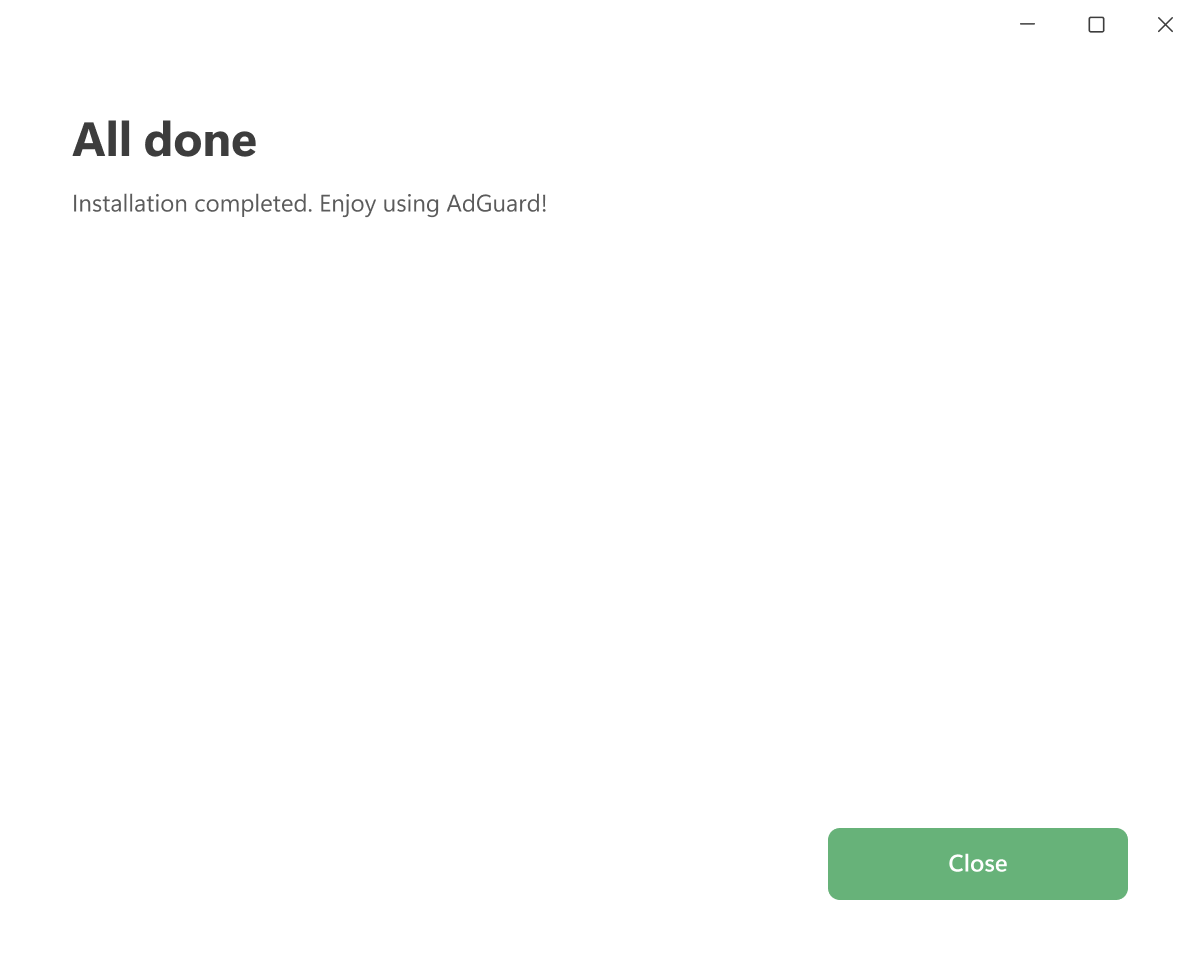
AdGuard has been successfully installed. When you launch the app, you’ll be prompted to accept our privacy documents and set up protection according to your preferences.


Jak odnstalovat AdGuard pro Windows
Obvyklý způsob
If you need to uninstall or reinstall AdGuard, do the following:
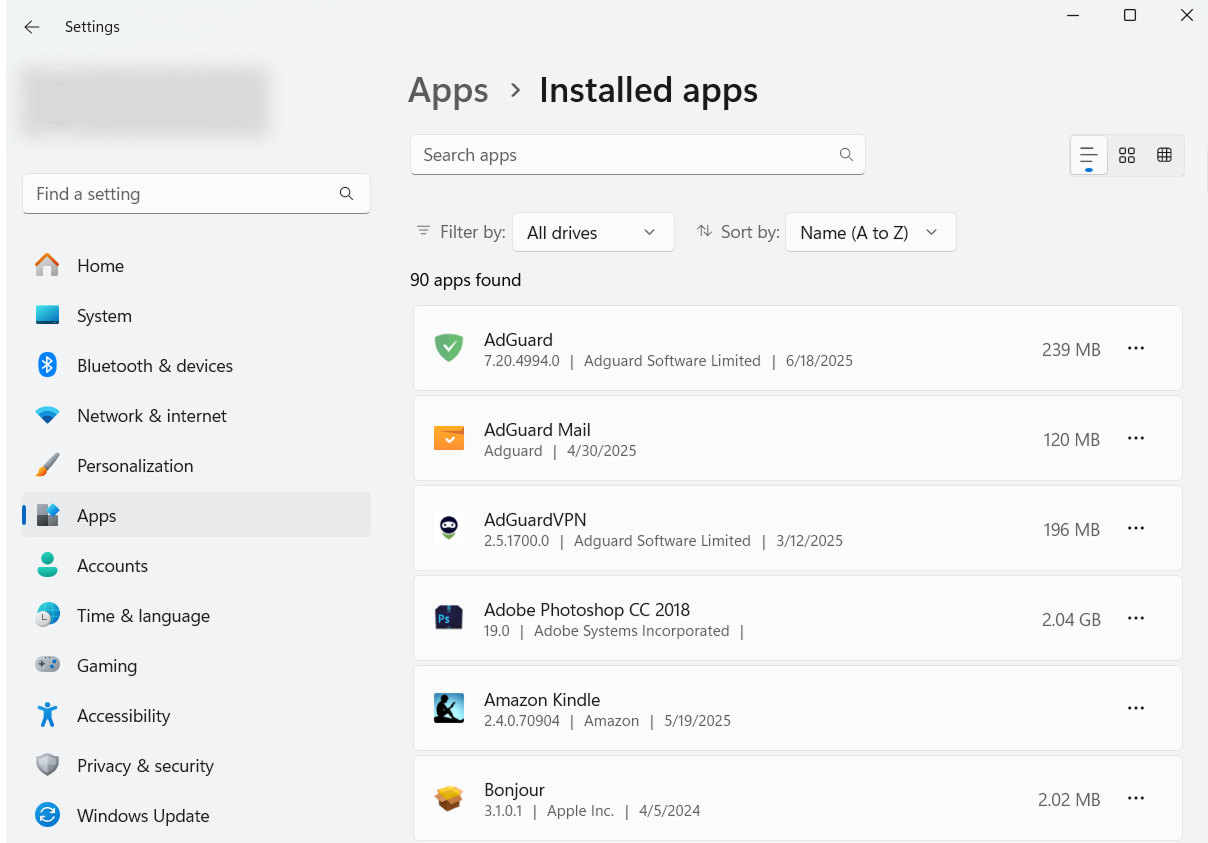
Open the Start Menu, then select Settings. In the window that opens, click Apps → Installed apps. Select AdGuard from the list of your installed apps, click the three-dot menu, and select Uninstall. After the app is uninstalled, restart your computer.
Zakazuje prohlížeči Google Chrome odesílat informace o verzi a modifikaci s požadavky na domény Google (včetně DoubleClick a Google Analytics).
The uninstaller automatically creates a backup of your settings in C:\ProgramData\Adguard\Backups. If you plan to reinstall AdGuard later, you can use this backup to restore your settings. For more information, see How to back up and restore AdGuard settings.
:::
Pokročilý způsob
If the regular uninstall doesn’t work for any reason, you can use the advanced method. First, download the uninstaller tool created by our developers. Extract the archive to any folder on your PC and run Adguard.UninstallUtility.exe, then allow the app to make changes to your device.
-
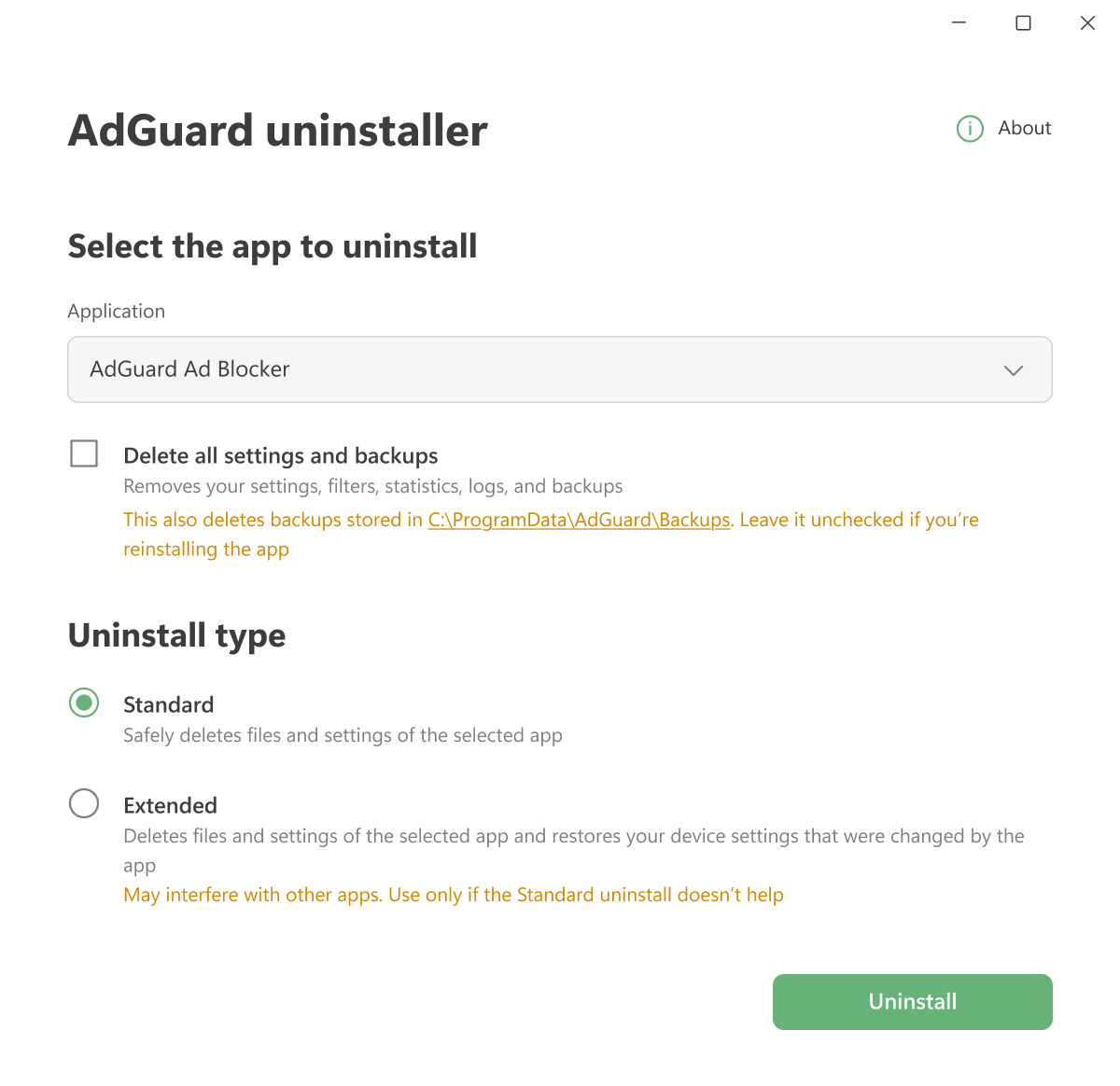
Select AdGuard Ad Blocker and Standard uninstall type, then click Uninstall.
-
Wait until the uninstall is finished and restart your computer.
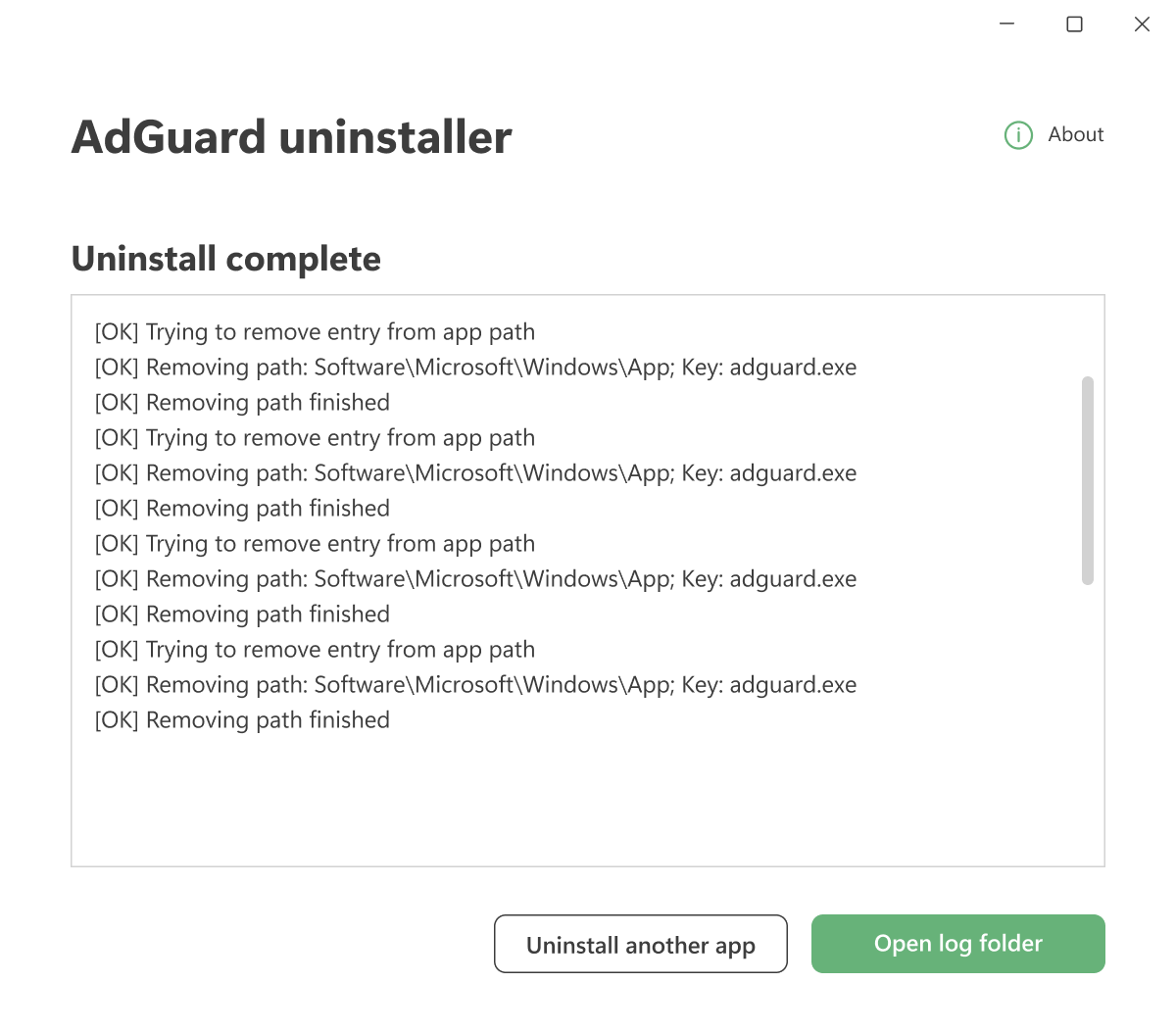
Follow the next steps only if the Standard uninstall didn’t fully remove AdGuard. We strongly suggest contacting our support before using the Extended uninstall.
-
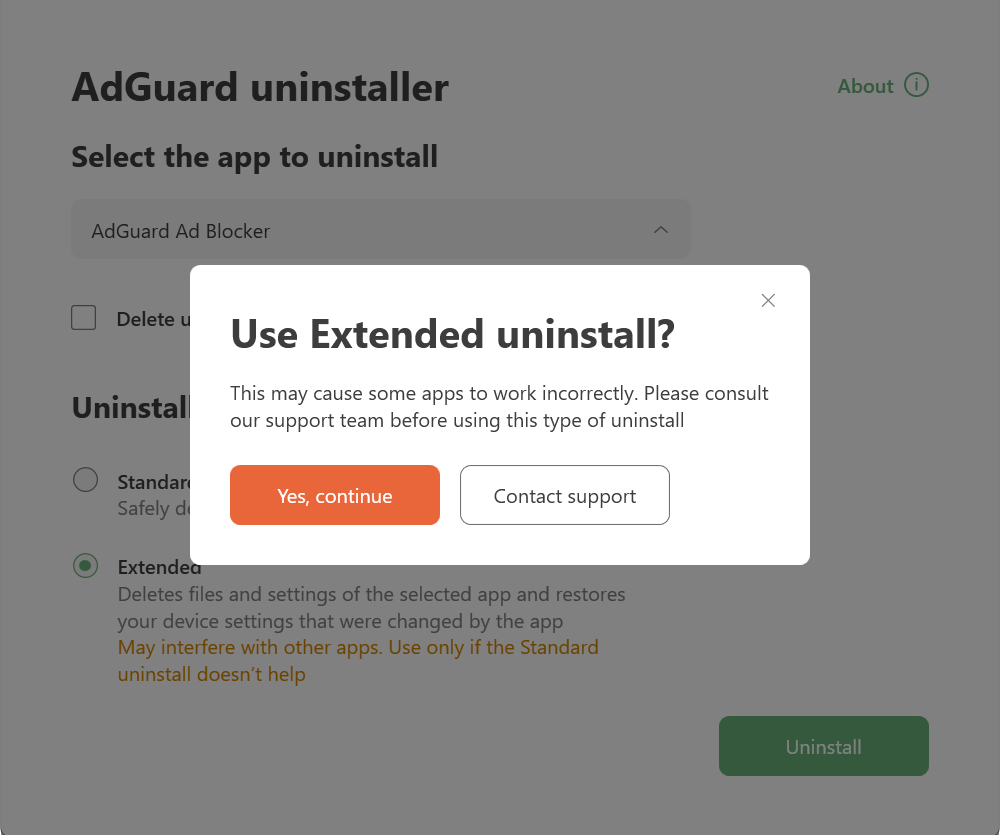
Select AdGuard Ad Blocker and Extended. Click Yes, continue in the prompt and then click Uninstall.
-
Wait until the uninstall is finished and restart your computer.
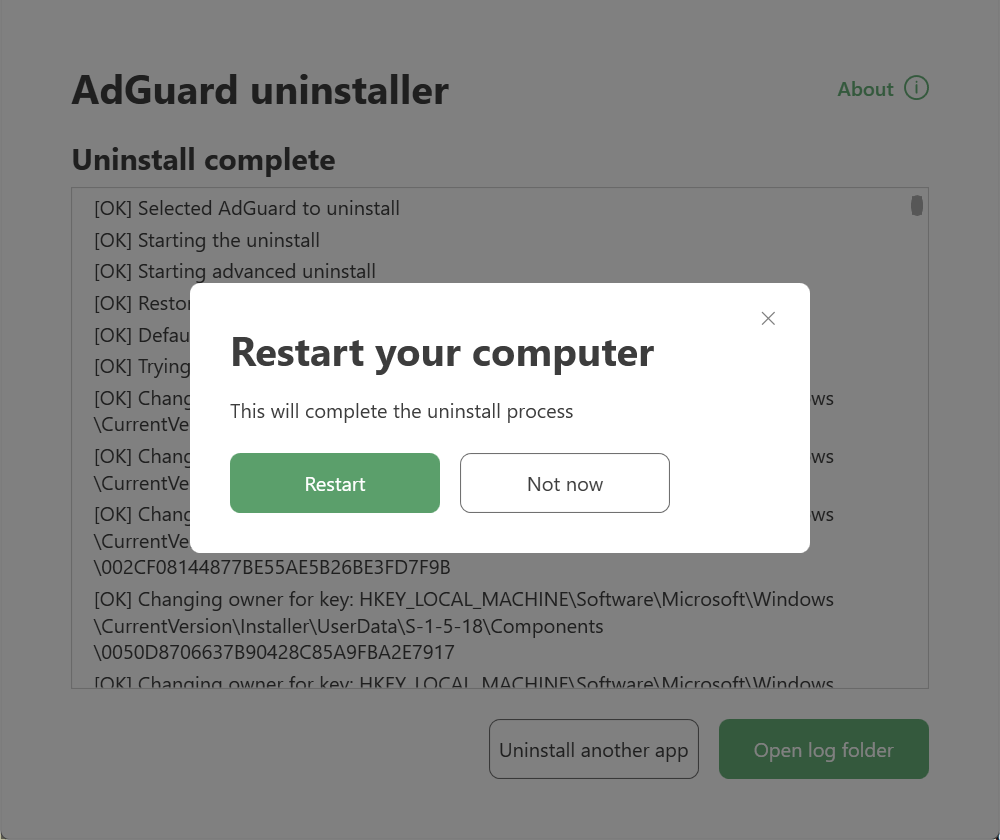
AdGuard byl úspěšně odinstalován!
Running the uninstaller in console mode
You can also use command-line arguments to uninstall AdGuard for Windows.
-
Open Command Prompt by typing
cmdin the Start menu. -
Use
/consoleto run the uninstaller in console mode, without the interactive UI. All the command-line parameters below will be ignored if the/consolemode is not activated. -
Use
/adblockerto uninstall AdGuard for Windows. Mělo by to vypadat takto:Adguard.UninstallUtility.exe /console /adblocker -
You can also use
/advancedto force the uninstaller to run in Extended mode and/settingsto force the uninstaller to remove user settings along with the application.
Zakazuje prohlížeči Google Chrome odesílat informace o verzi a modifikaci s požadavky na domény Google (včetně DoubleClick a Google Analytics).
The parameters /console and /adblocker are necessary for a successful uninstall. Parametry /advanced a /settings jsou volitelné.
:::